
Kindara for Android can keep track of Custom Reminders that will go off whenever you’d like. To access your Reminders:
- Open Kindara
- Tap Menu
- Tap Reminders
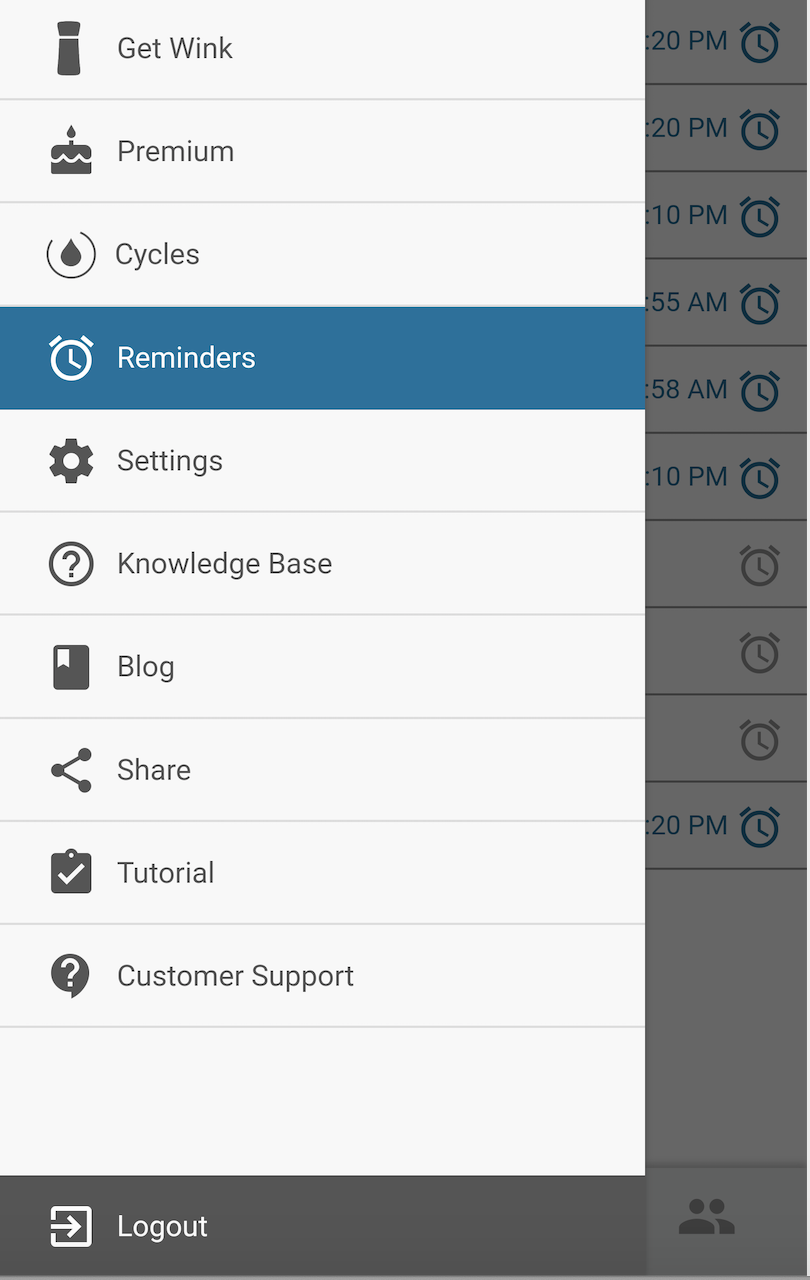
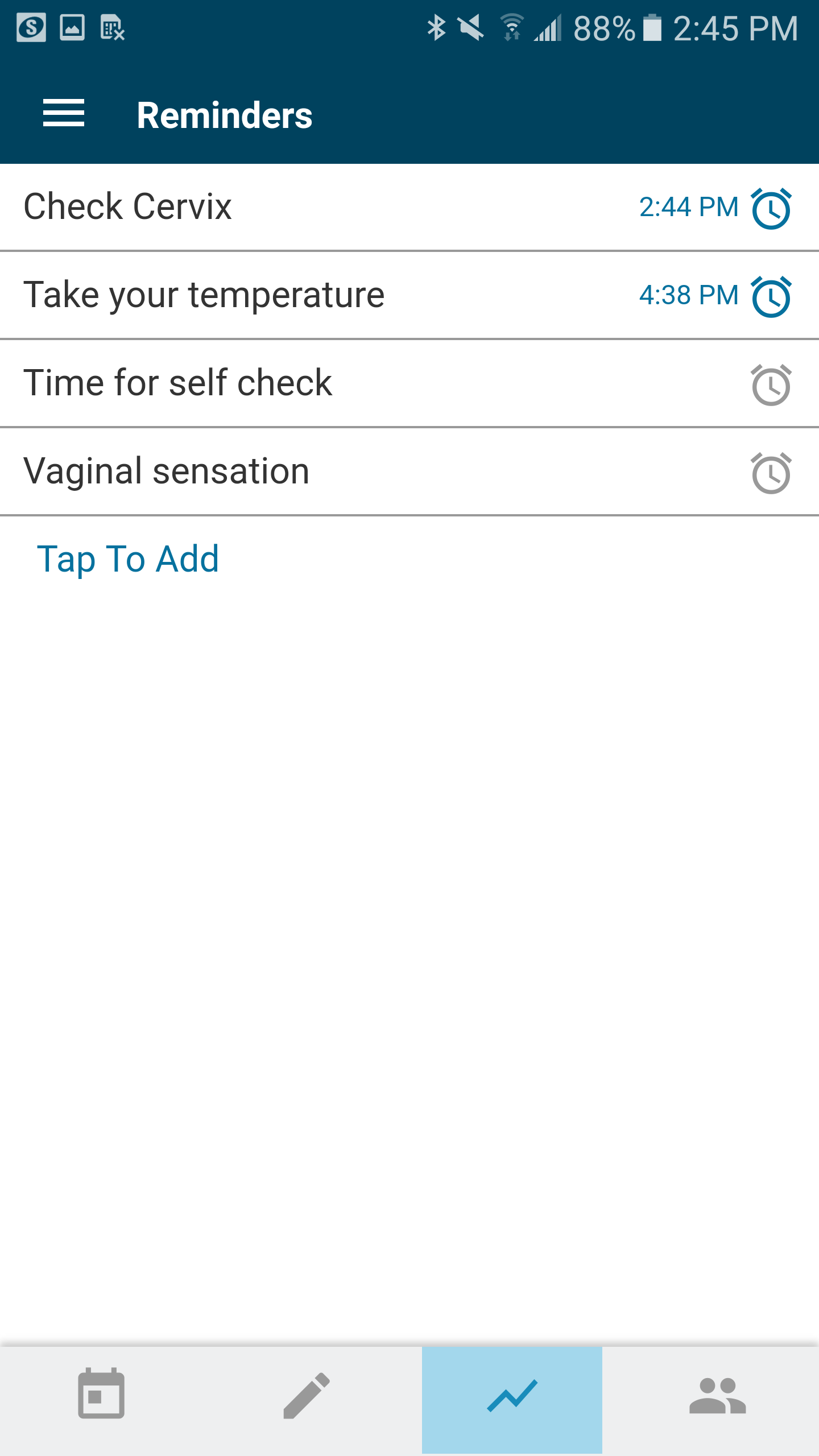
On this screen, you’ll find a list of all the reminders you currently have turned on and off. The two reminders "Take your temperature" and "Time for a self-check", are preprogrammed in the Kindara app and can set to remind you at any time of day you like (or turn off completely if you don’t wish to be reminded).
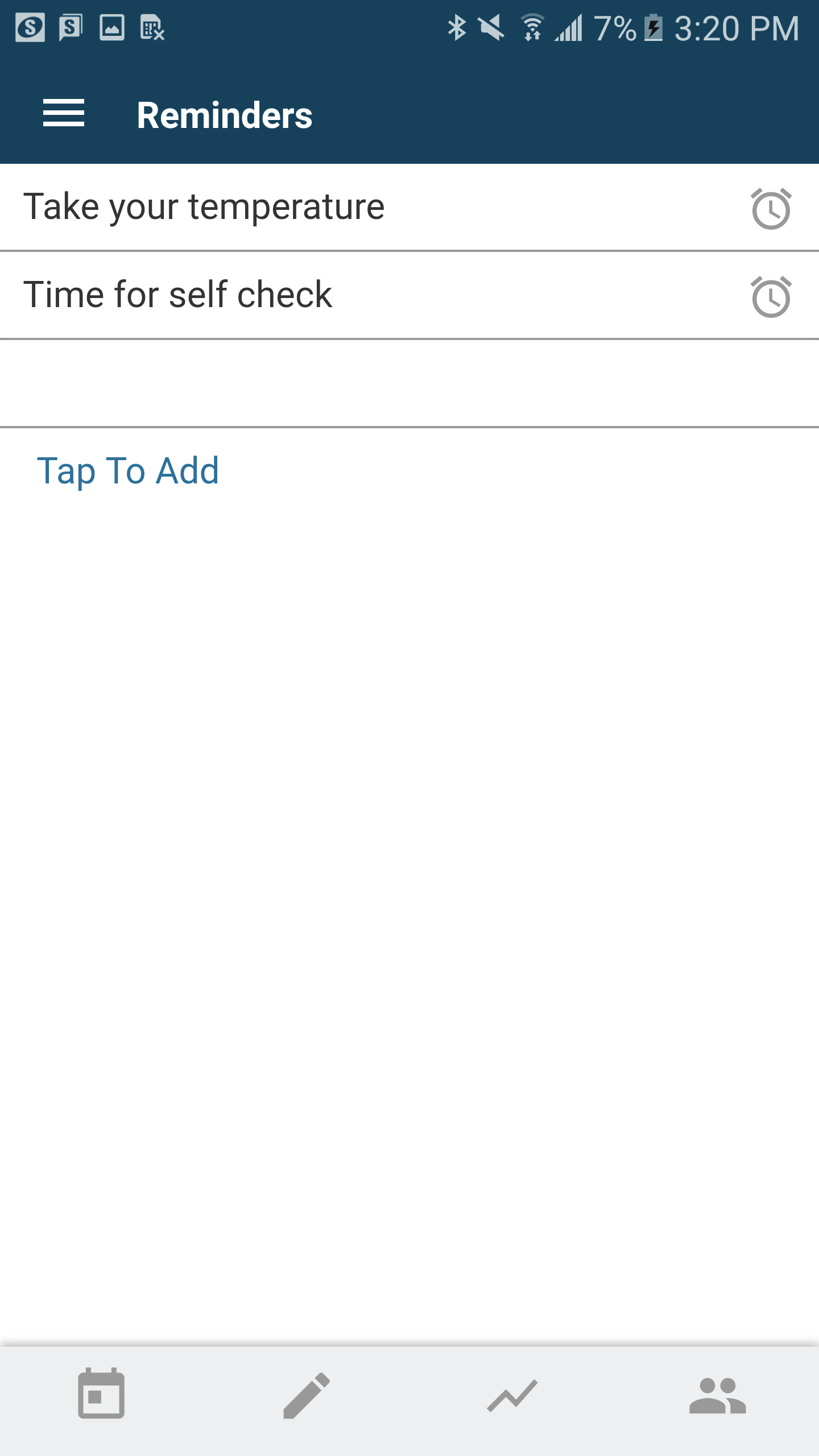
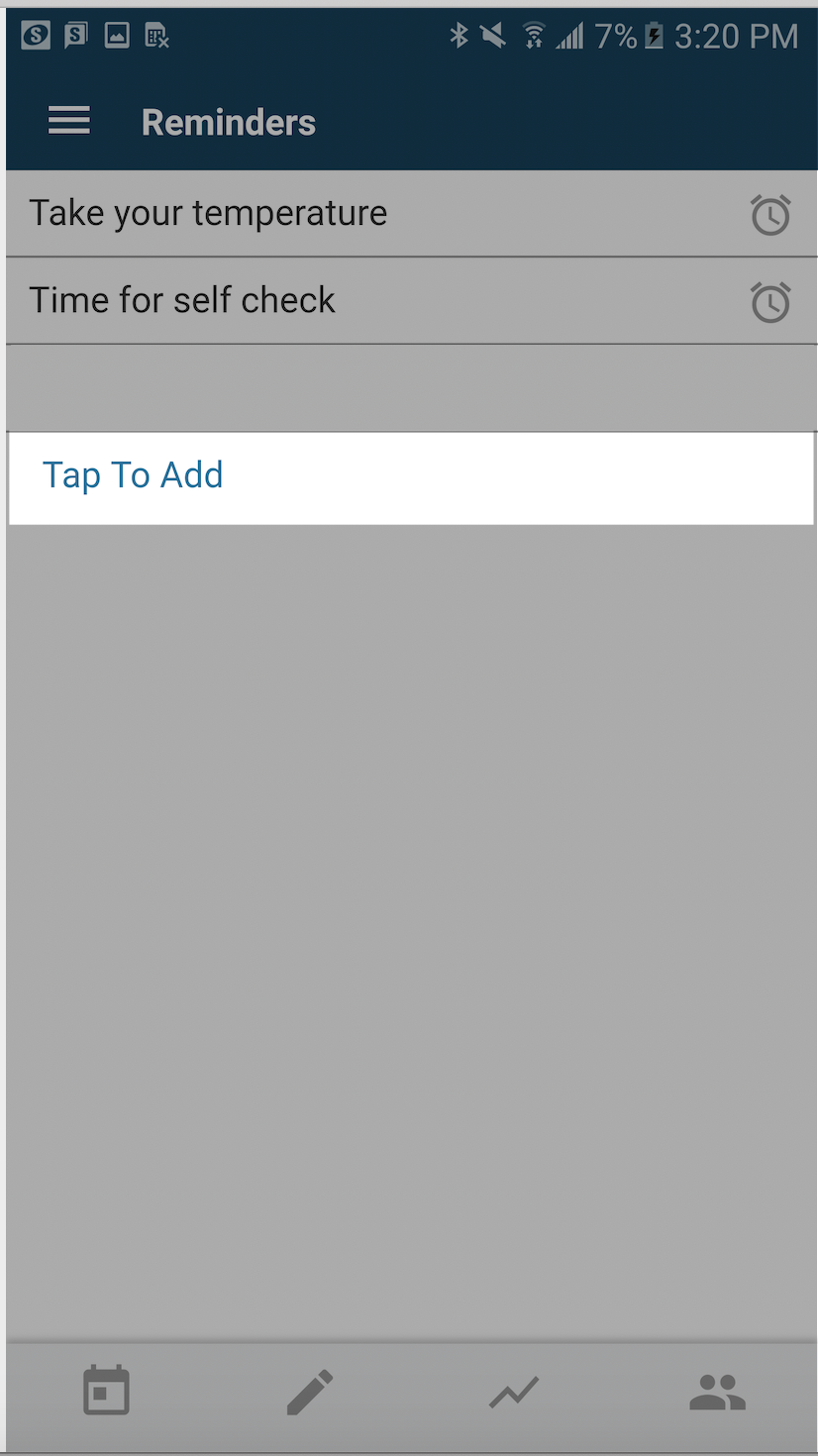
To create a Custom Reminder:
- Tap the row that says Tap to Add.
- Enter the name of your custom reminder – for example, if you’d like Kindara to remind you to check your cervix, you could call this reminder “Check cervix.” Please consider your title carefully: the title you enter here will appear as a notification on your phone when the time comes, even if the phone is locked, so keep this in mind if your reminder is something that you’d prefer to keep private.
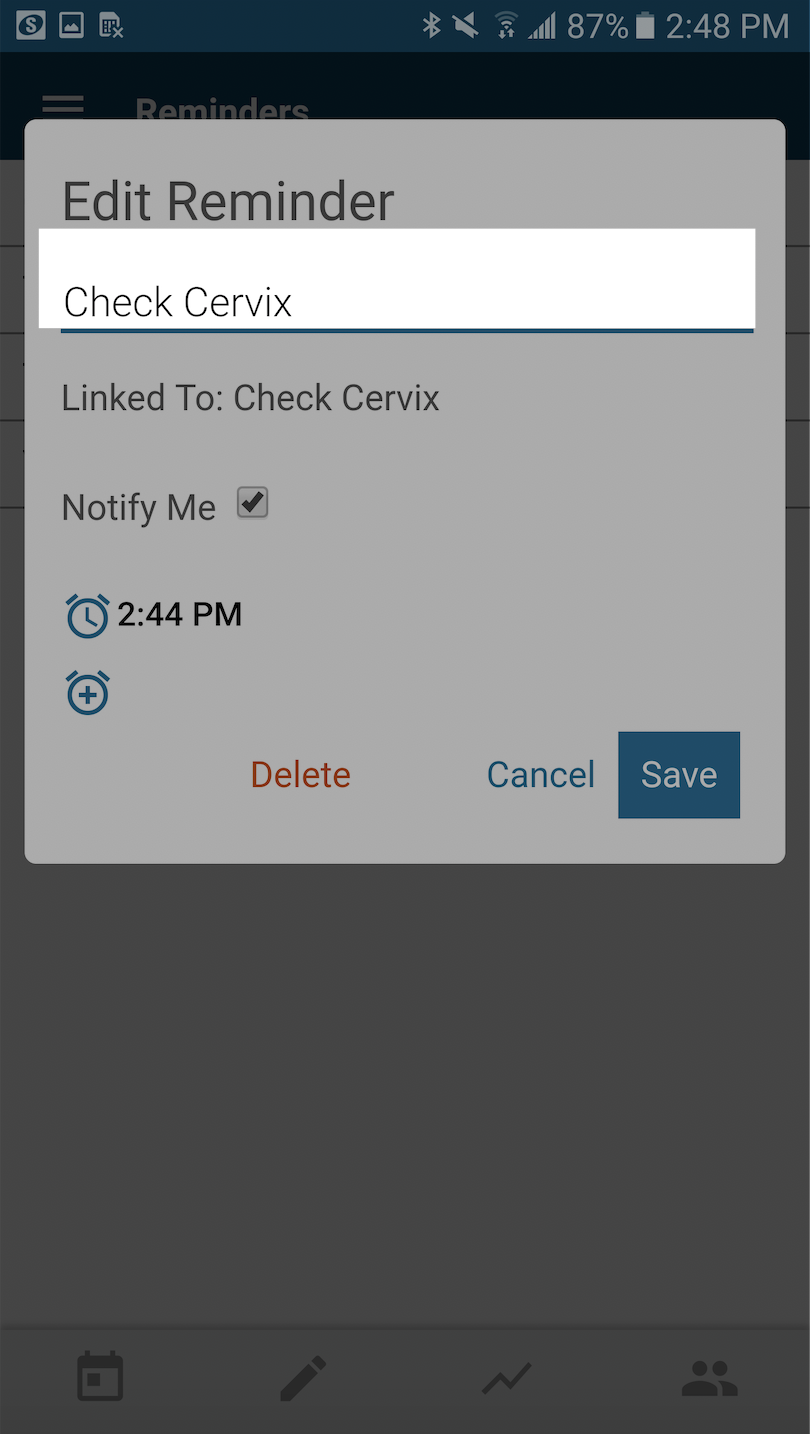
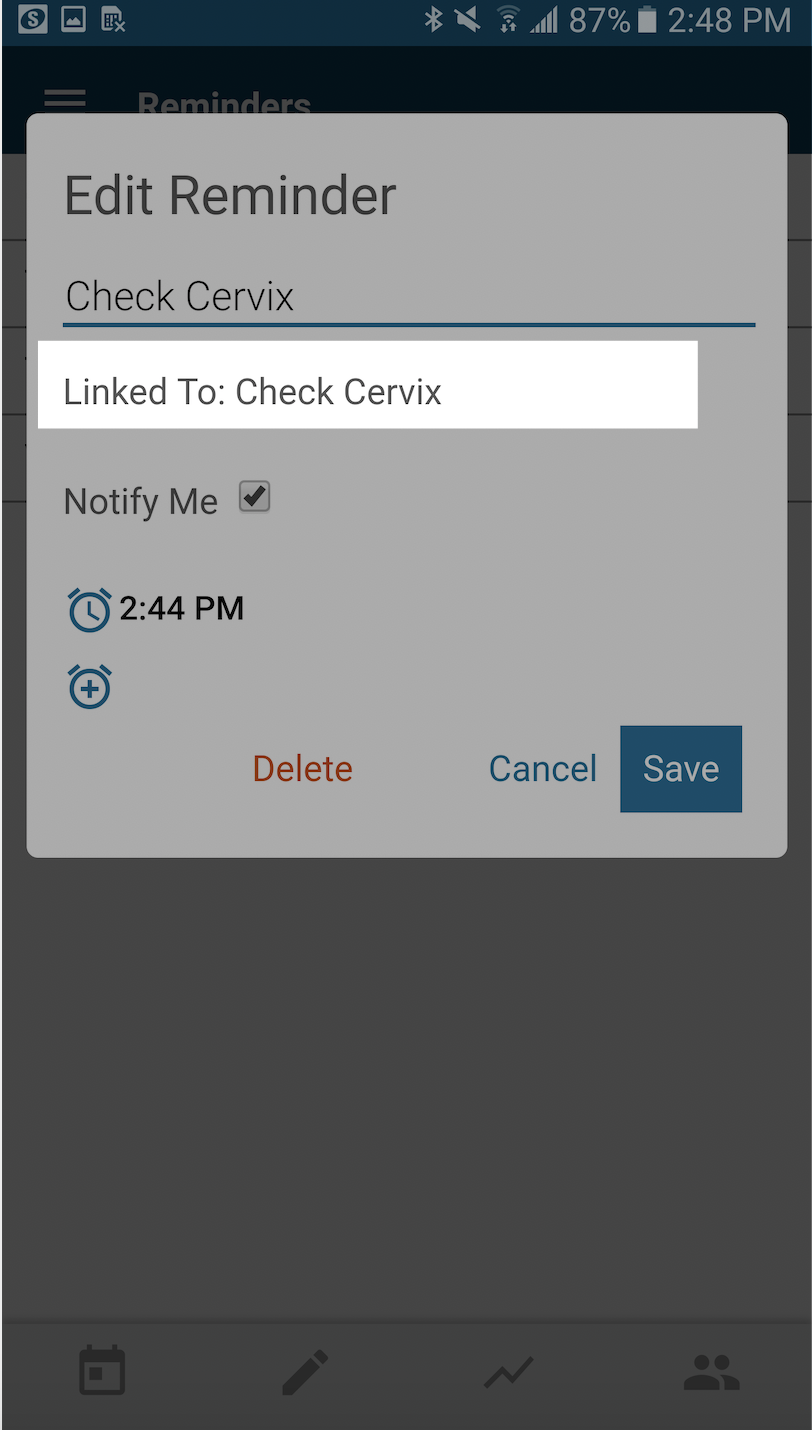
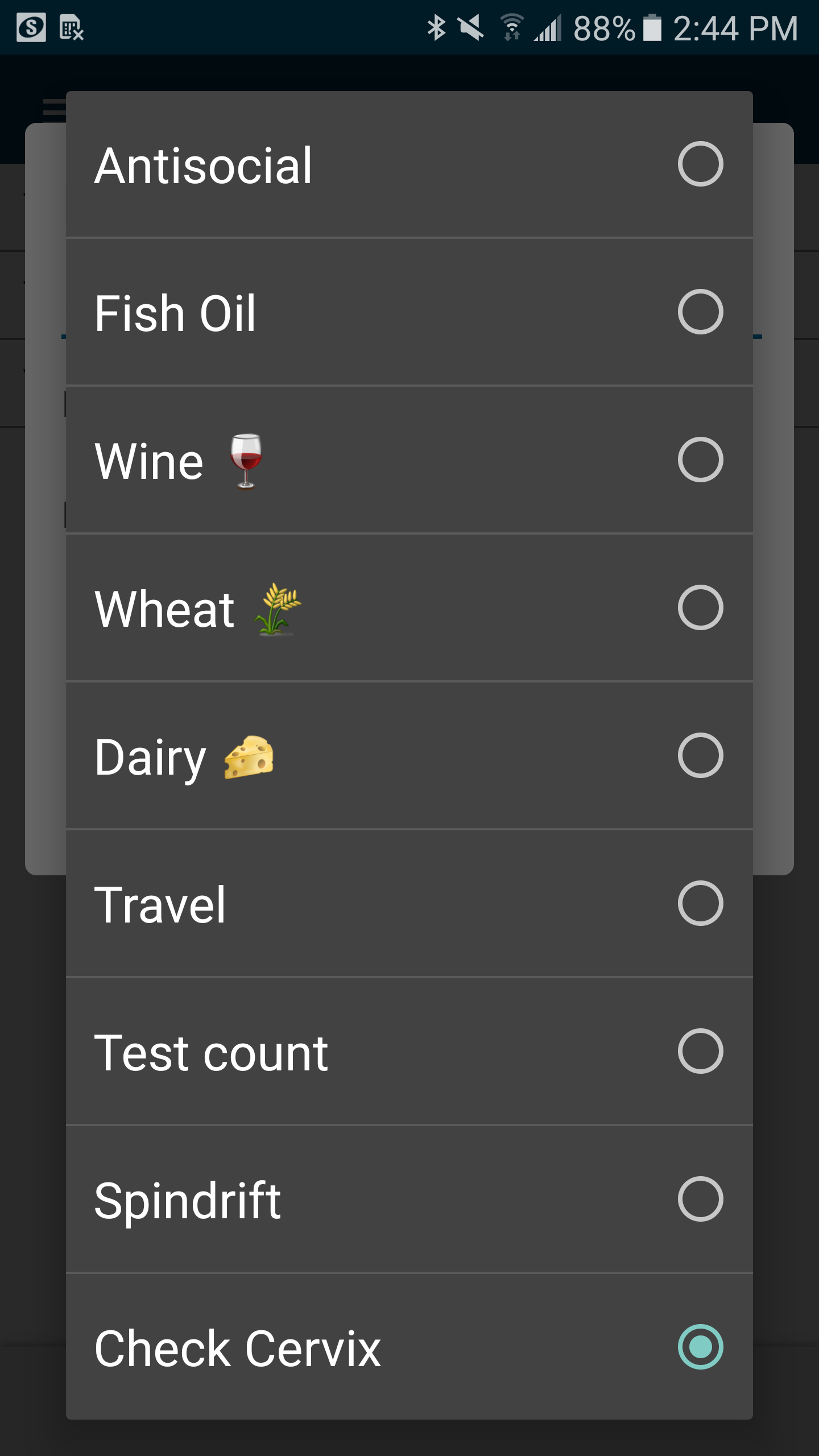
- Select Linked To if you'd like to Link this reminder to a Custom Data you've already created.
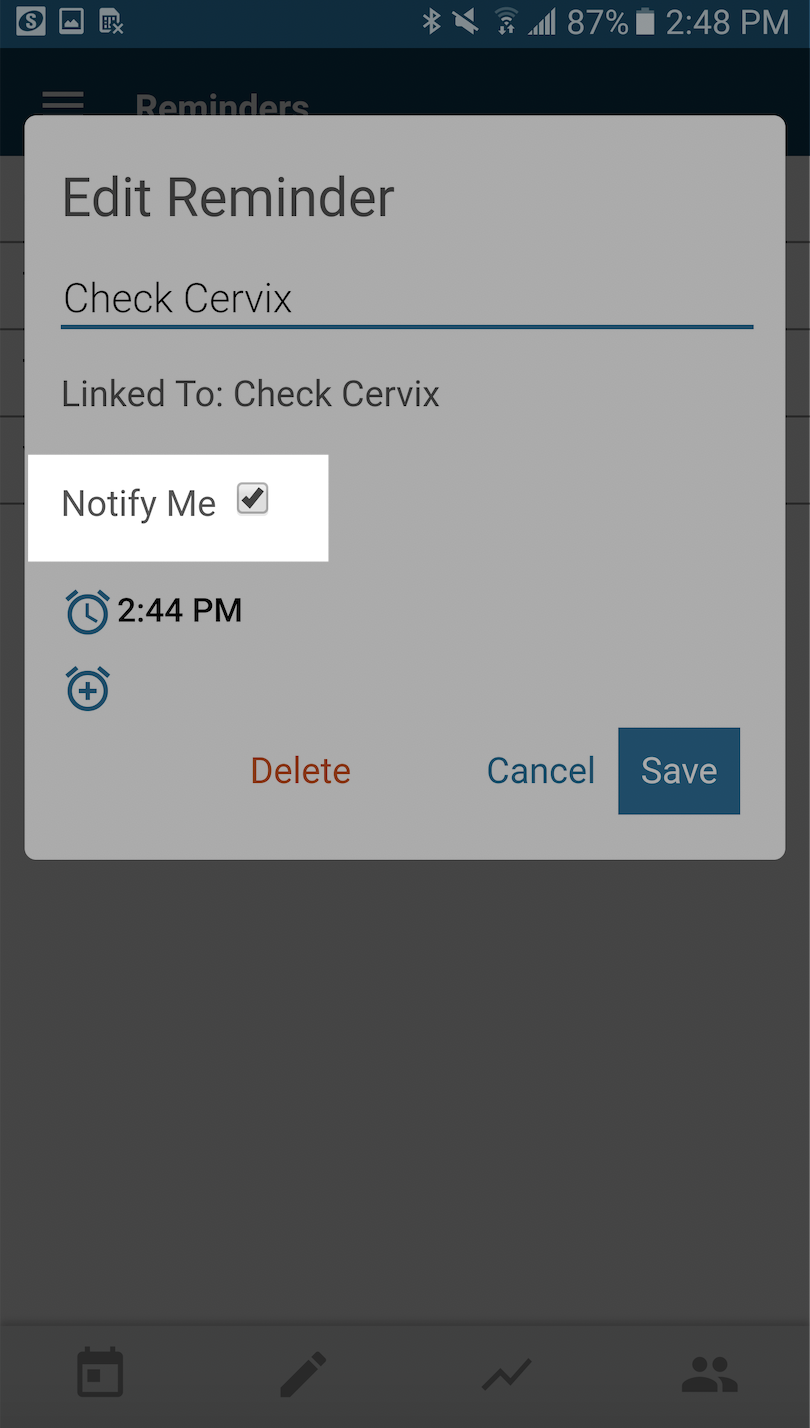
- Tap Notify me if you'd like to be notified of the Reminder
- Set the time you'd like to be reminded and tap "Ok" to save the time.
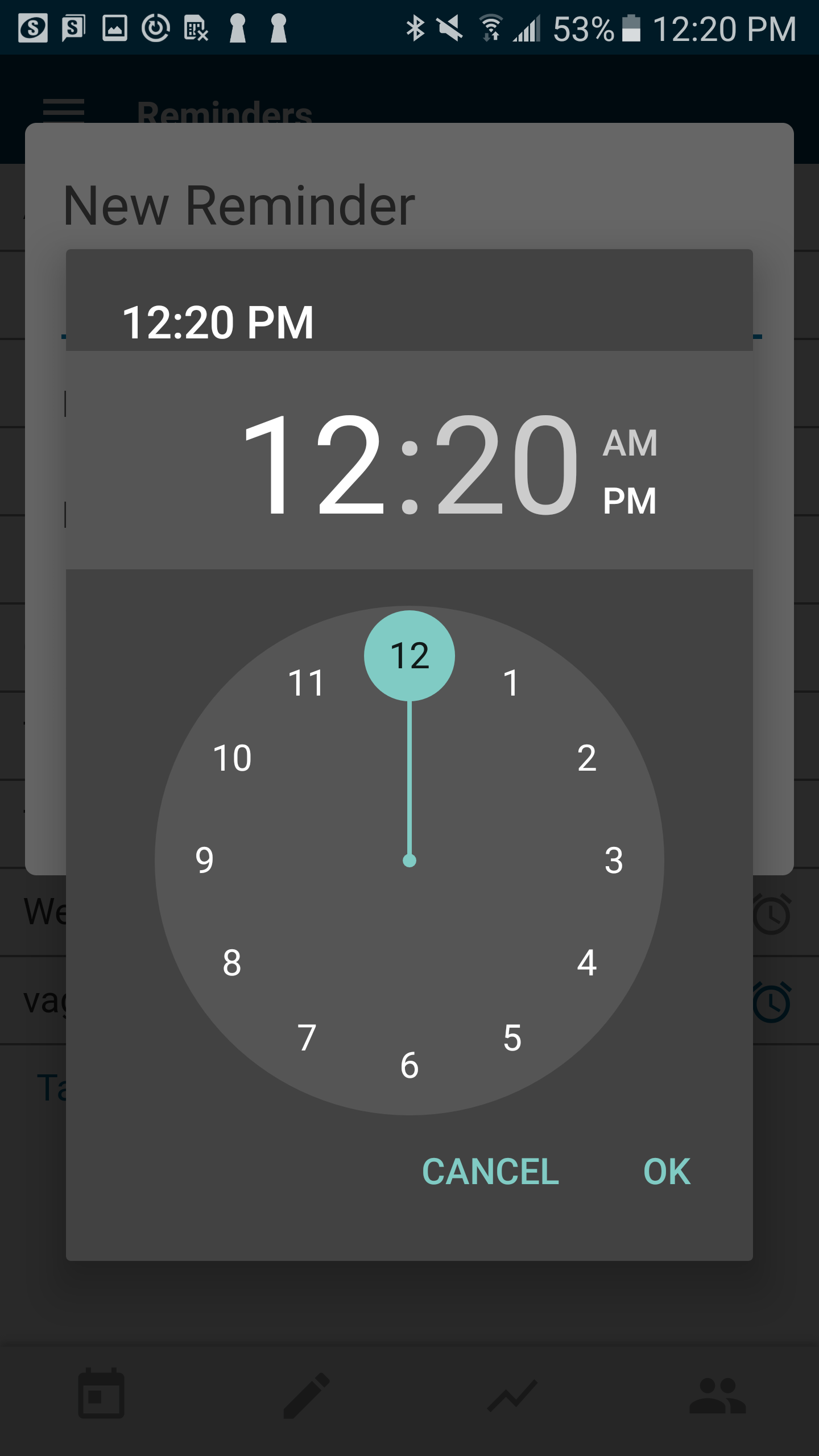
- Add multiple Reminder Times for the same Custom Reminder and repeat the step above to select the time and tap OK when done.
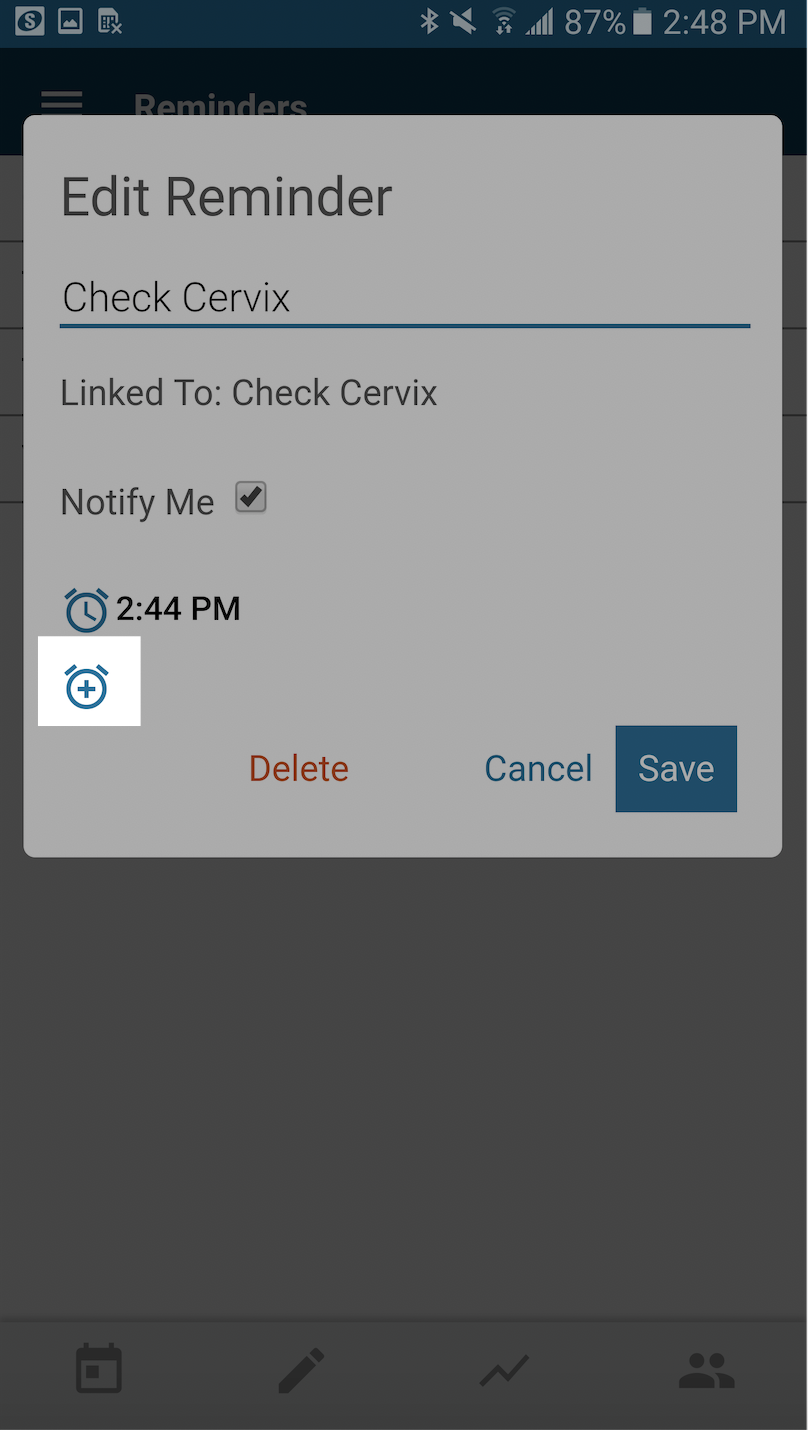
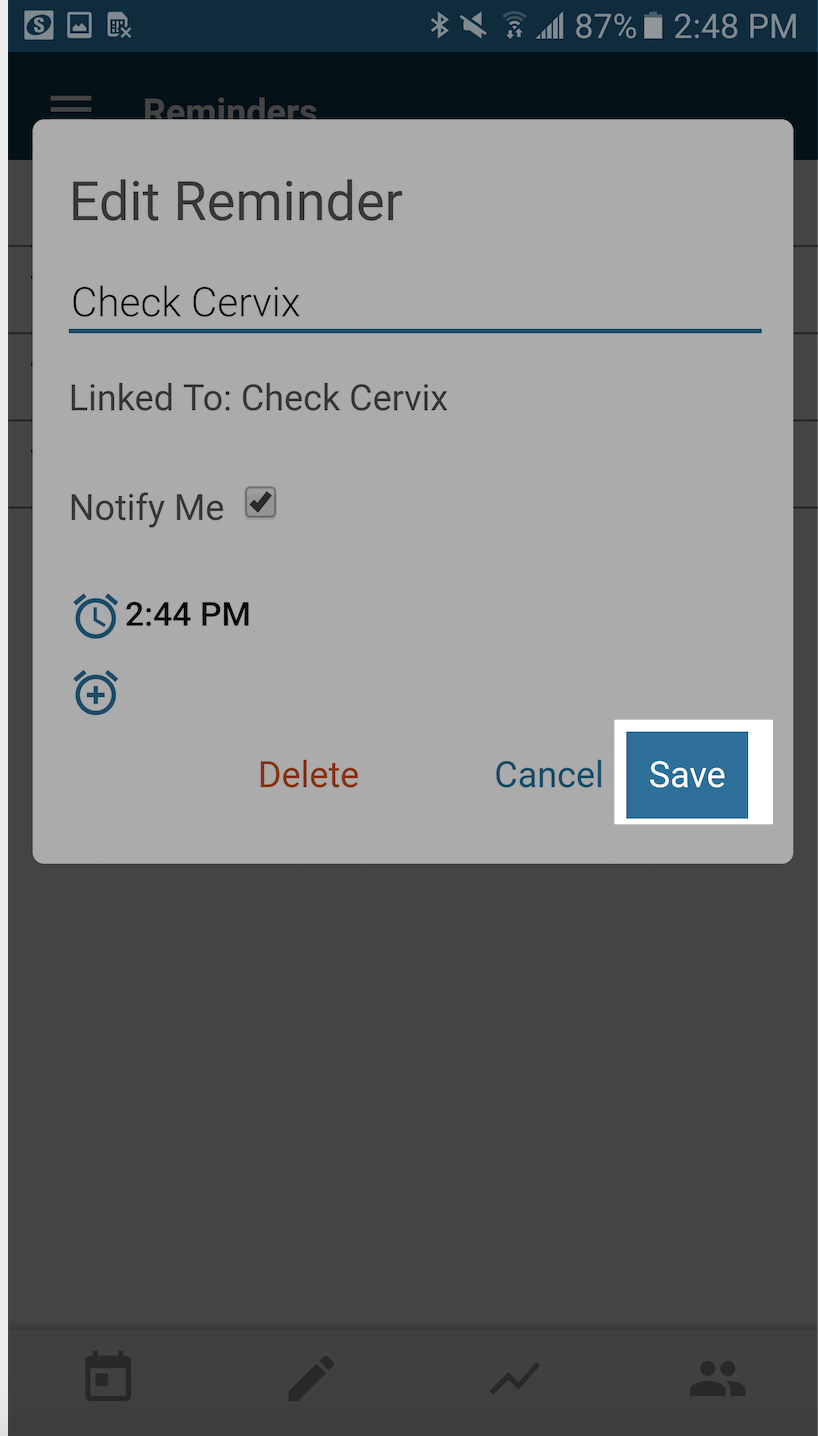
- Tap Save once more to Save the new Custom Reminder!
- You'll now see the new Custom Reminder on the Reminders page, along with the scheduled time(s)!
- As an additional reminder please be sure to allow Kindara to send Notifications in your Android Devices Settings!