
Take advantage of Kindara Premium's unlimited Custom Data feature to help you track personal data that support your fertility and health goals!
First, let's get Custom Data to display on your Data Entry page (pencil icon)!
iOS Apple:
- In the Kindara App, tap More
- Tap Settings
- Tap Data Entry Layout
- Tap Edit
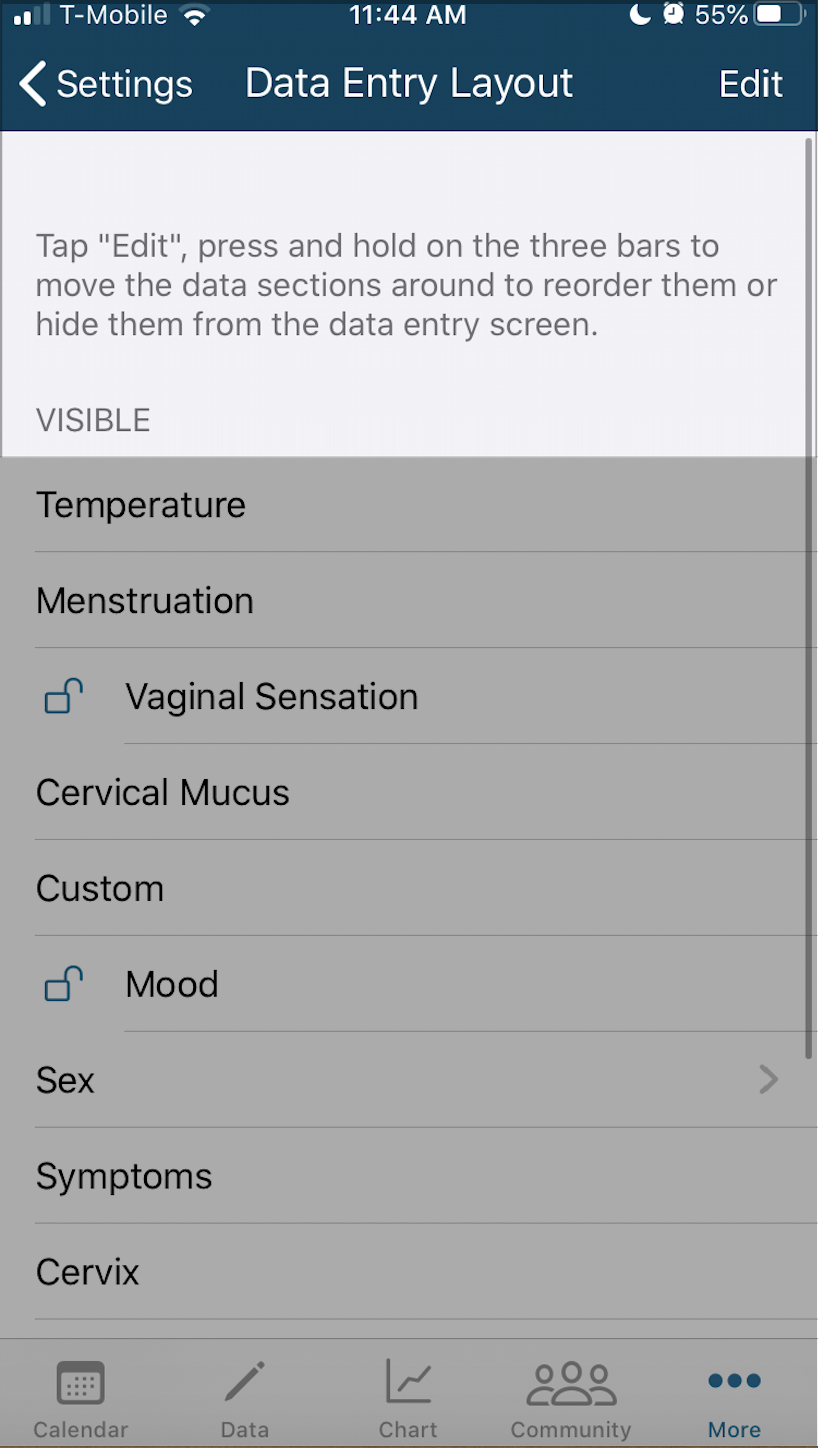
- Tap and hold the three lines next to Custom and drag it from "Hidden" to "Visible"
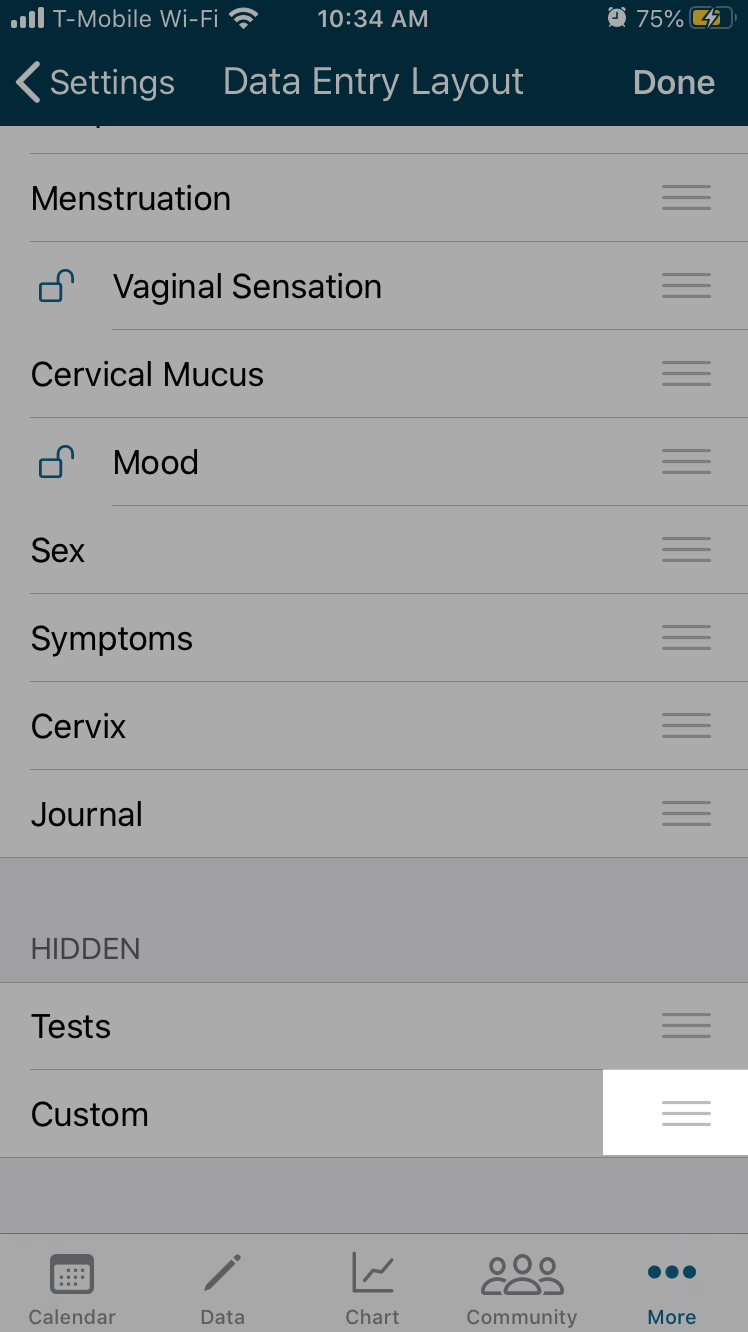
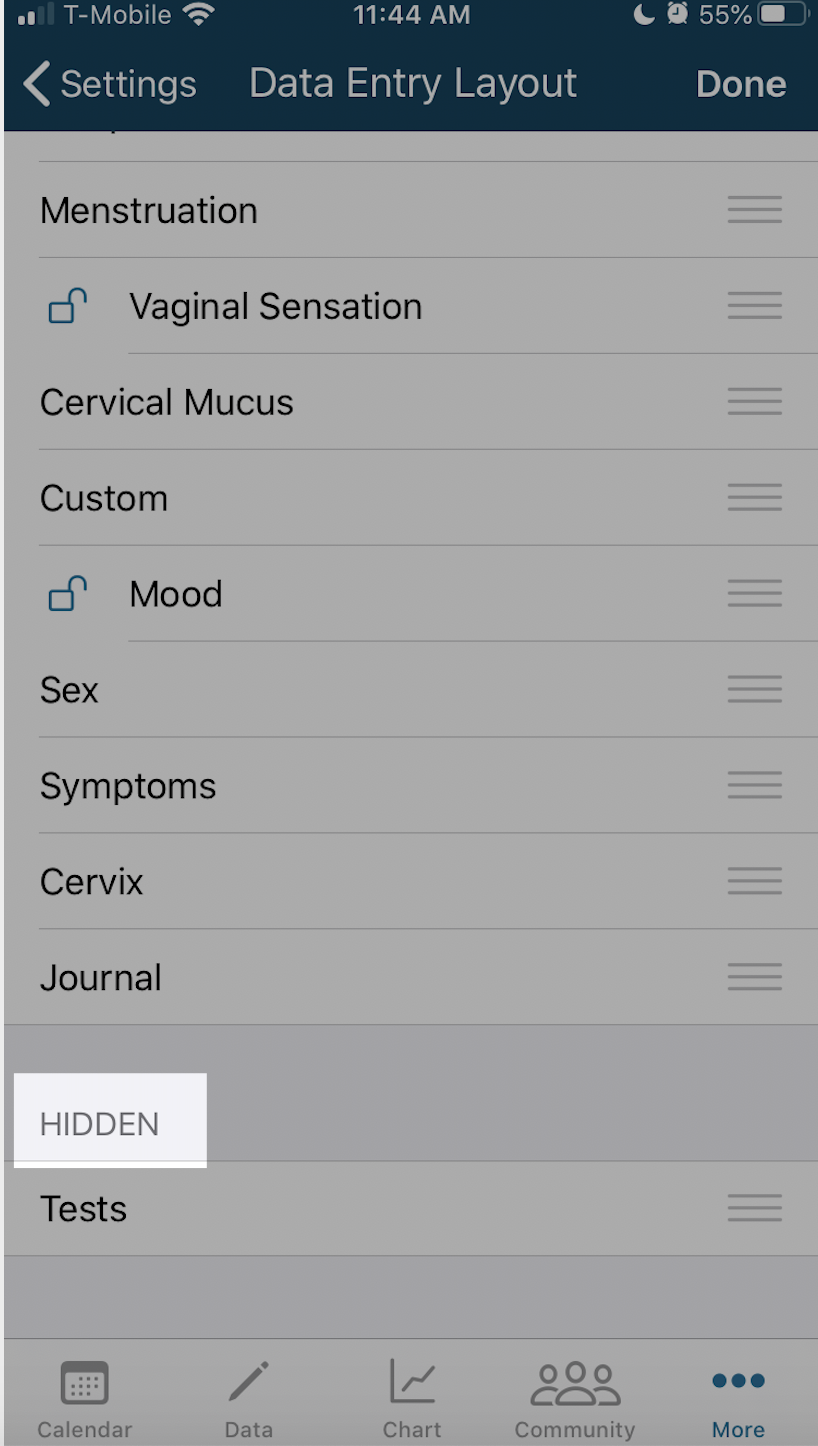
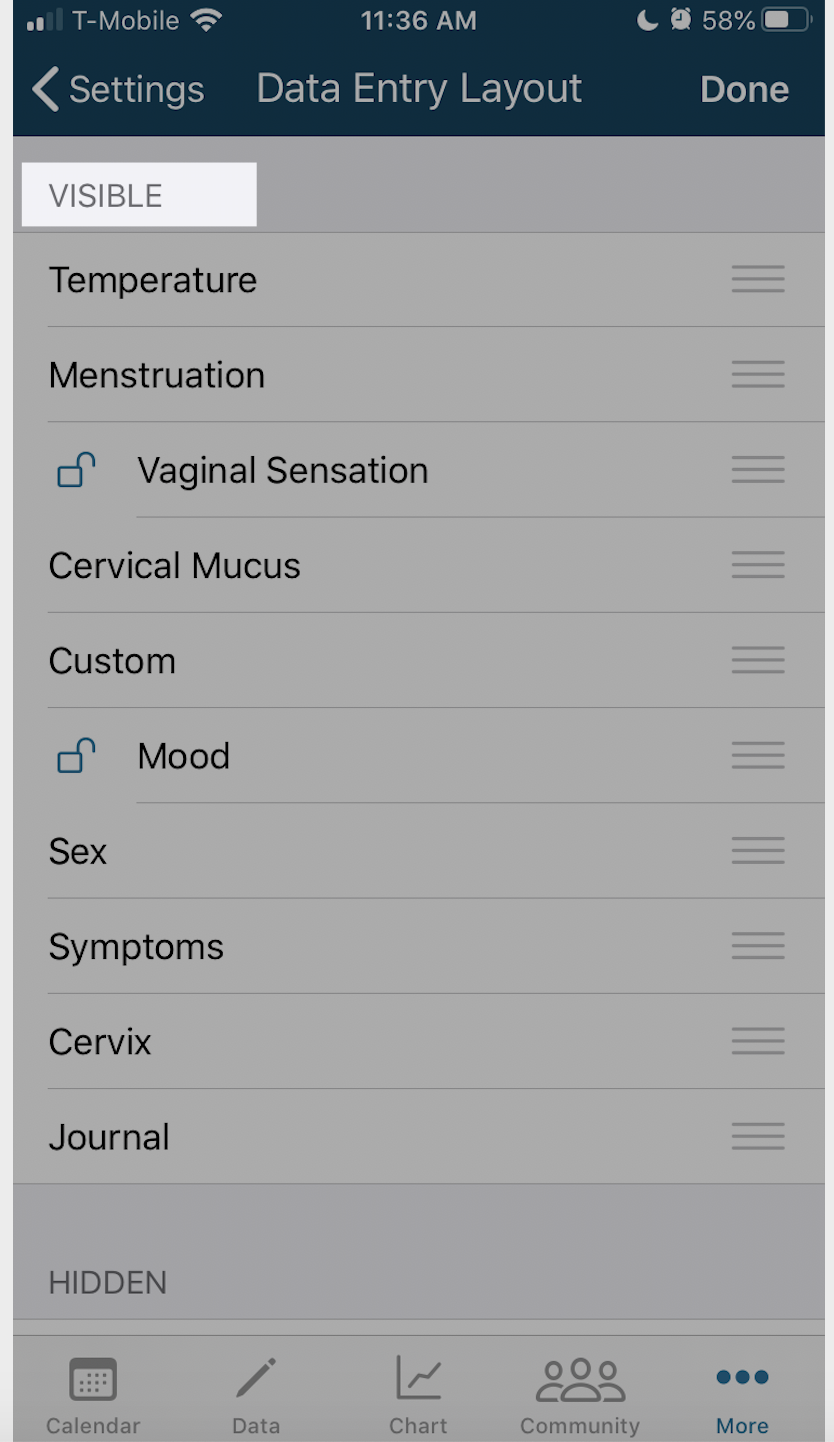
- Tap Done
- Tap Data entry page (pencil icon at the bottom)
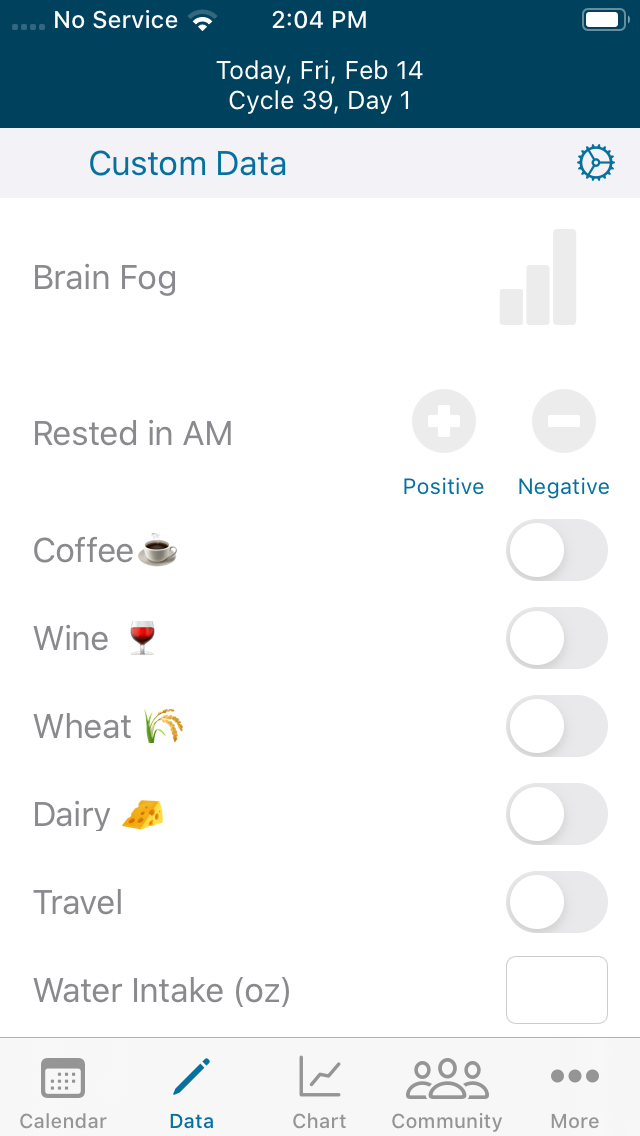
- See these items listed on the Data entry page (pencil icon)
Create a new Custom Data Field:
- On the Data entry page (pencil icon) scroll down until you see Custom Data
- Scroll down until you see the words "Tap To Add"
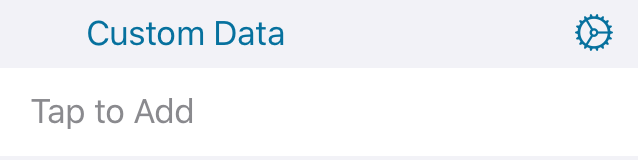
- Once the words "Tap to Add" is tapped Kindara will open a new page
- Enter a title of the new Custom Data
- Select an Input Type
- Tap Save
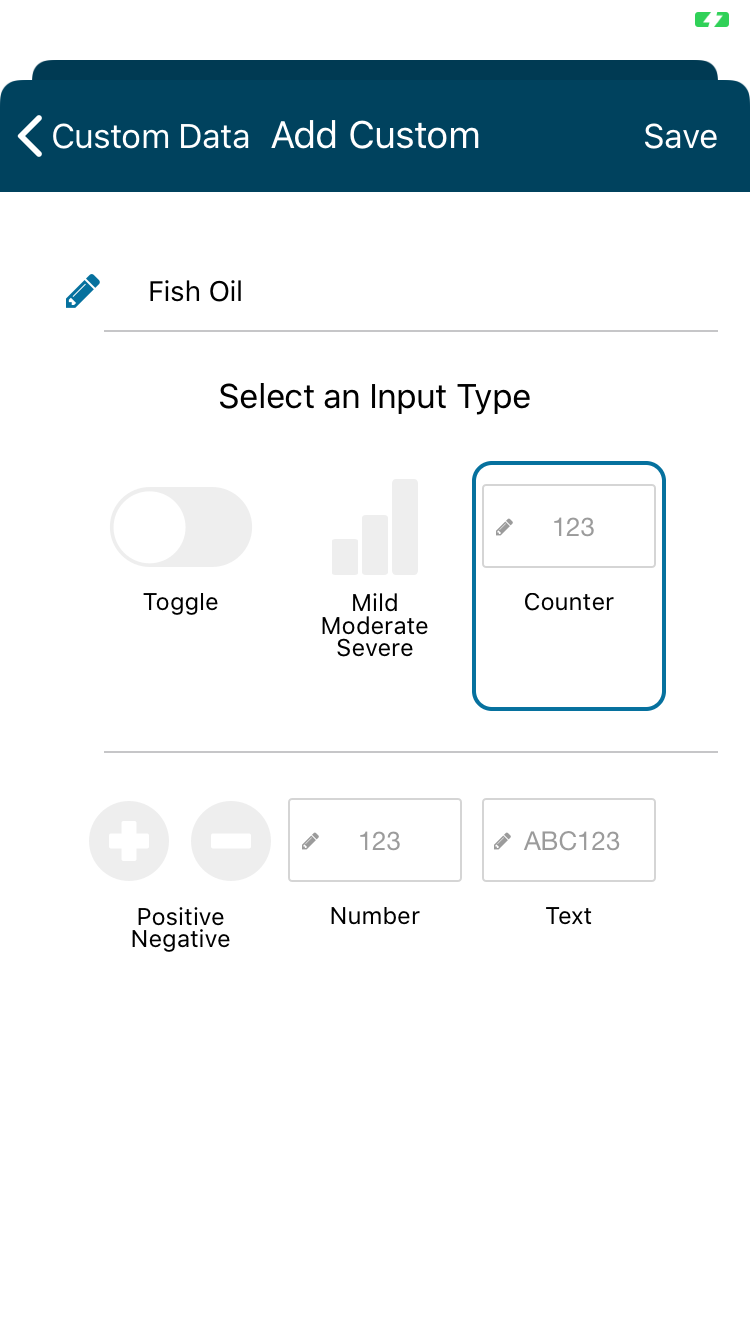
- Tap back arrow "Custom Data"
- Repeat as needed for each new field
Below are some examples of how Custom Data can be used to help you track your fertility journey!
Input Types examples:
- Toggle can be used as a quick way to track things like Coffee or Food intake
- Mild/Moderate/Severe may be of use to track how things like Brain Fog, Dry Skin, or Heartburn
- Positive/Negative is a helpful easy way to track items such as if you've felt Rested after sleep
- Number is a great way to track items like Water intake or Weight
- Text can be used to track specific ways you've practiced Self Care or Exercise
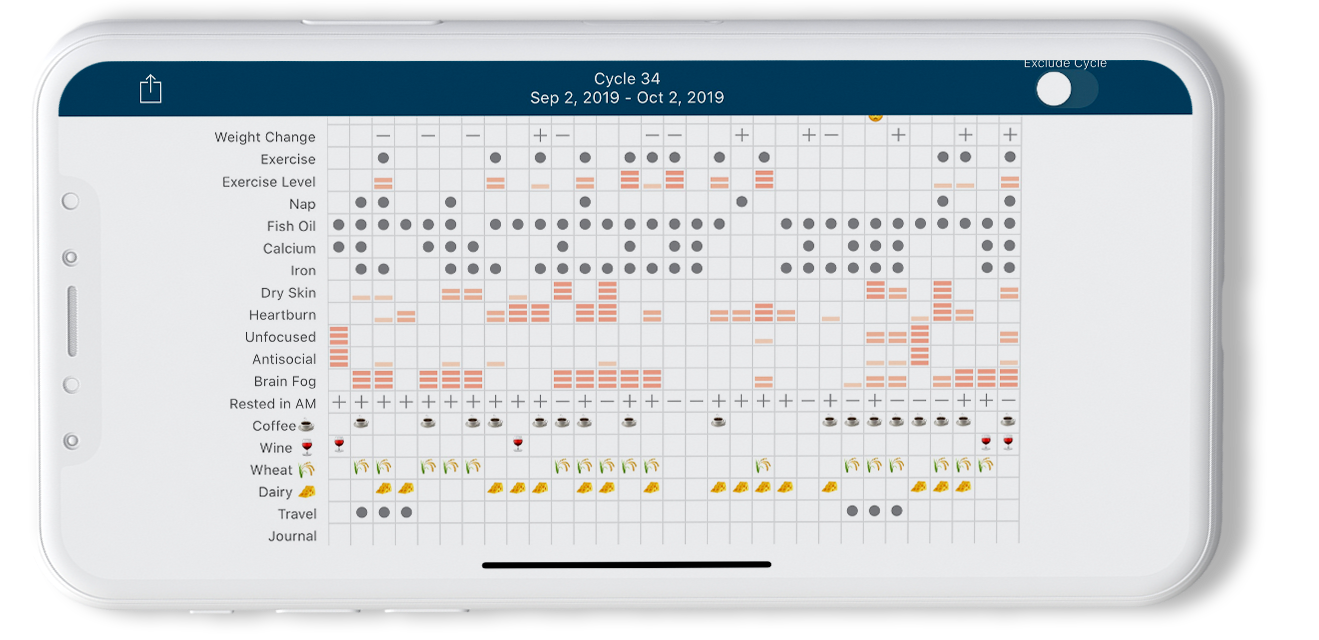
If a common emoji is used in the beginning or end of a Custom Data name for Toggle, Number, or Text, that emoji will appear in Chart view instead of a gray dot.
View your Custom data fields on your Cycle by tapping the Chart View:
Read about how to make the most of your Custom data!