
Kindara Premium Feature Moods allows you to track your mood throughout the day and your cycle!
Tracking our moods may help us identify the patterns throughout our cycle and can clue us in how our mood changes over time.
First, let's get Moods to display on your Data Entry page (pencil icon)!
iOS Apple:
- In the Kindara App, tap More
- Tap Settings
- Tap Data Entry Layout
- Tap Edit
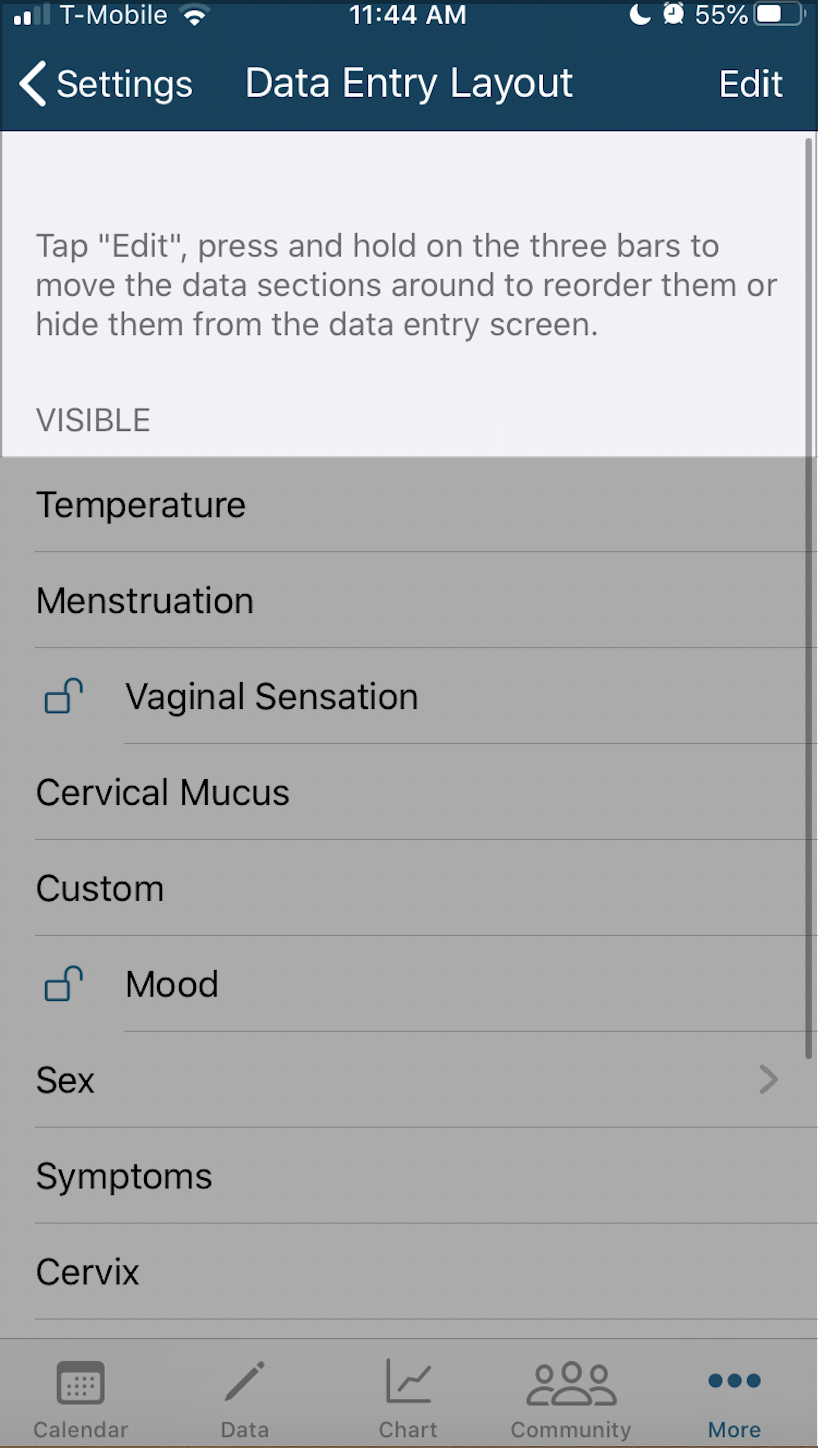
- Drag the three lines next Mood to display from "Hidden" to "Visible"
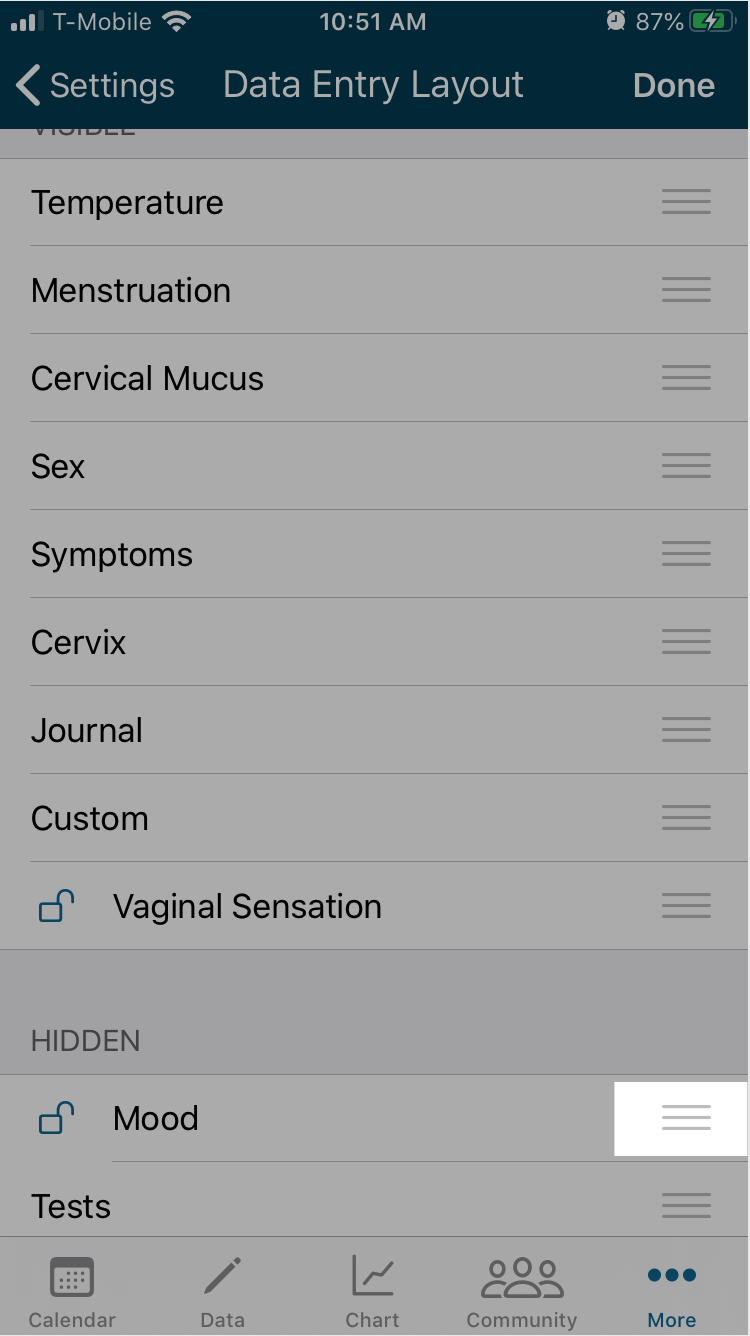
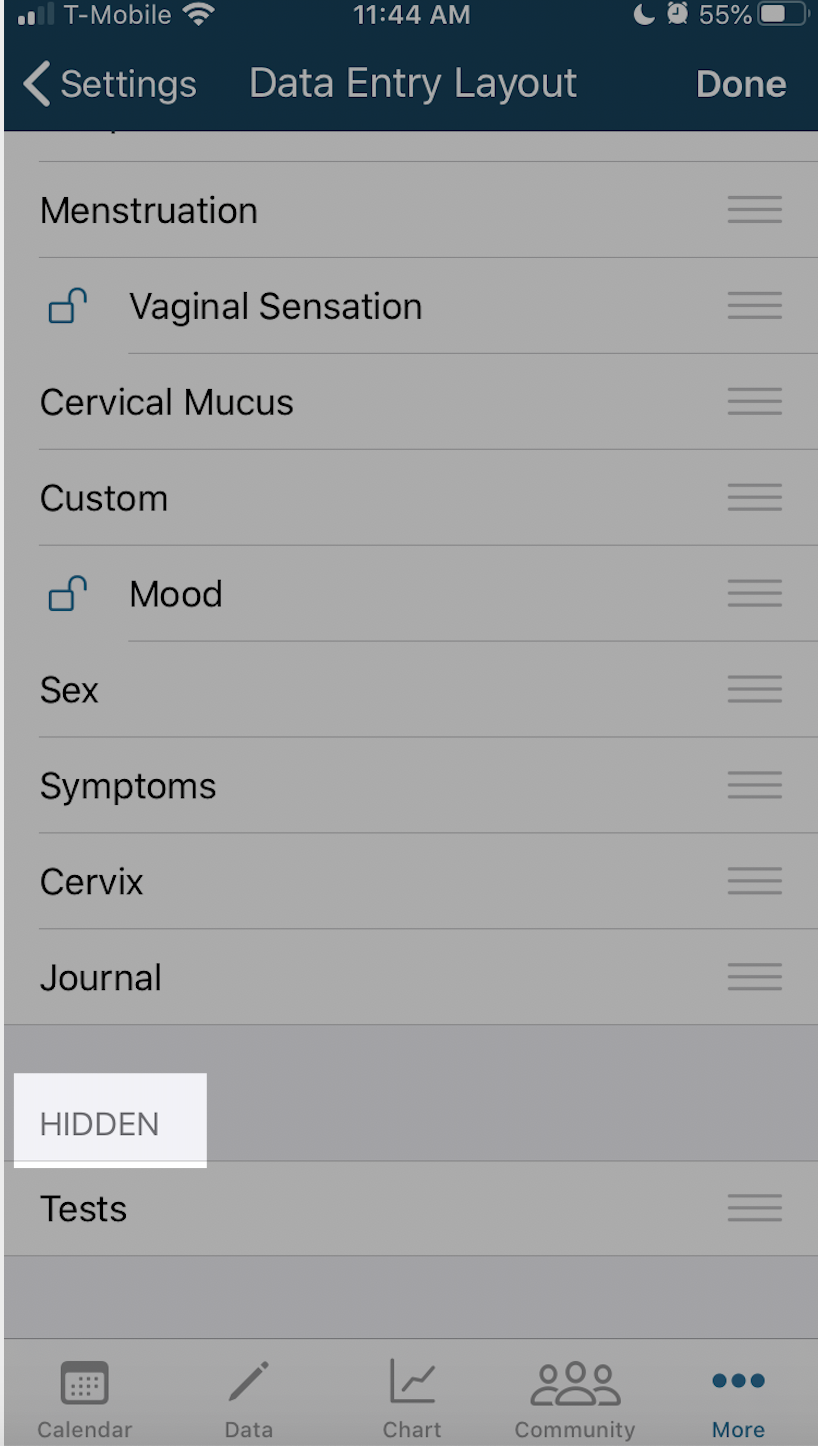
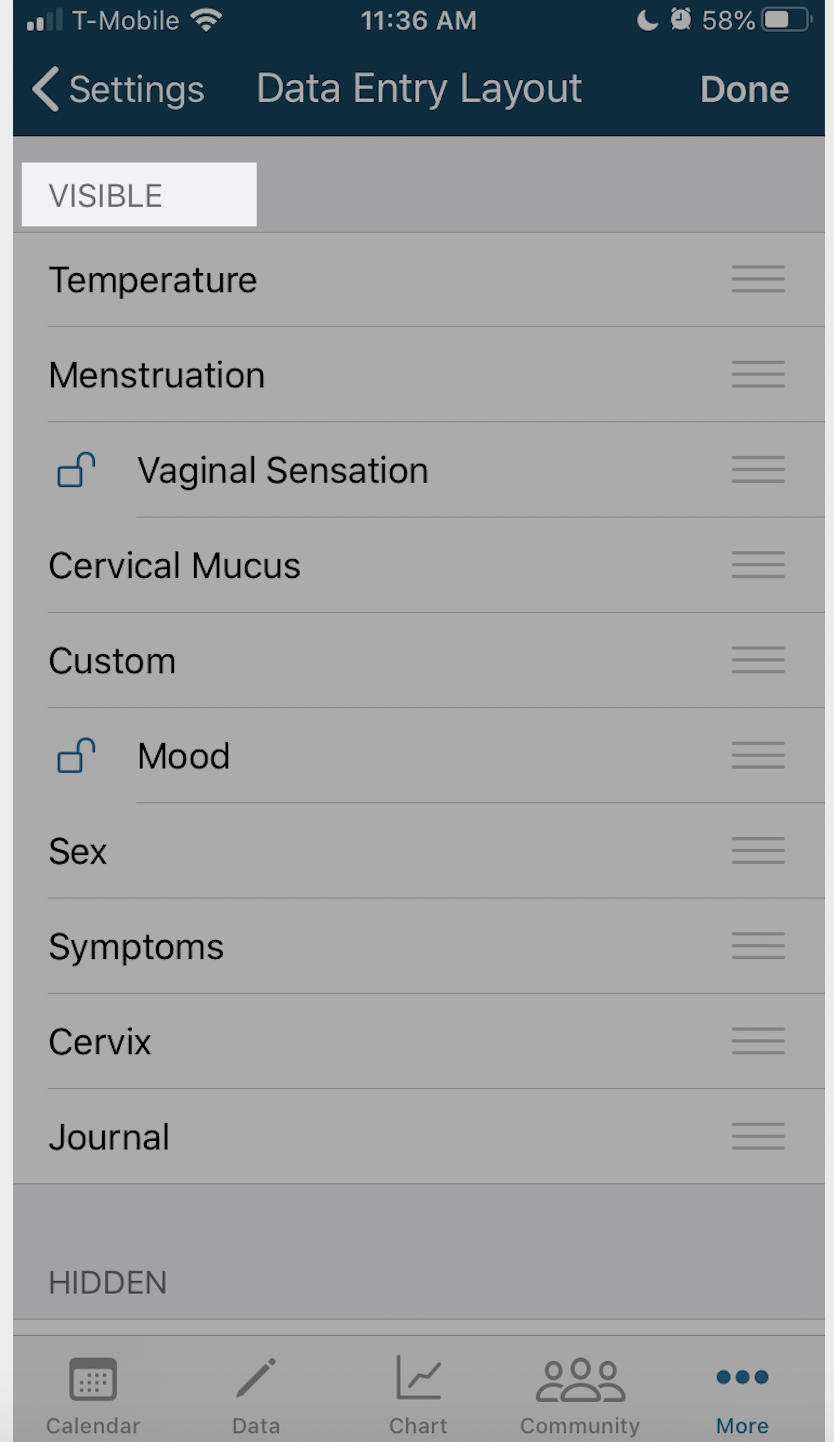
- Note you can rearrange these items in the way you'd like to view them in the Data Entry page (pencil icon) as well. By dragging the three lines next to the item up or down.
- Tap Done
- Tap Data entry page (pencil icon at the bottom) to see Moods available to select each day
_____________________________________________________________________________________________
Android:
- In the Kindara App, tap Menu (three vertical lines)
- Tap Settings
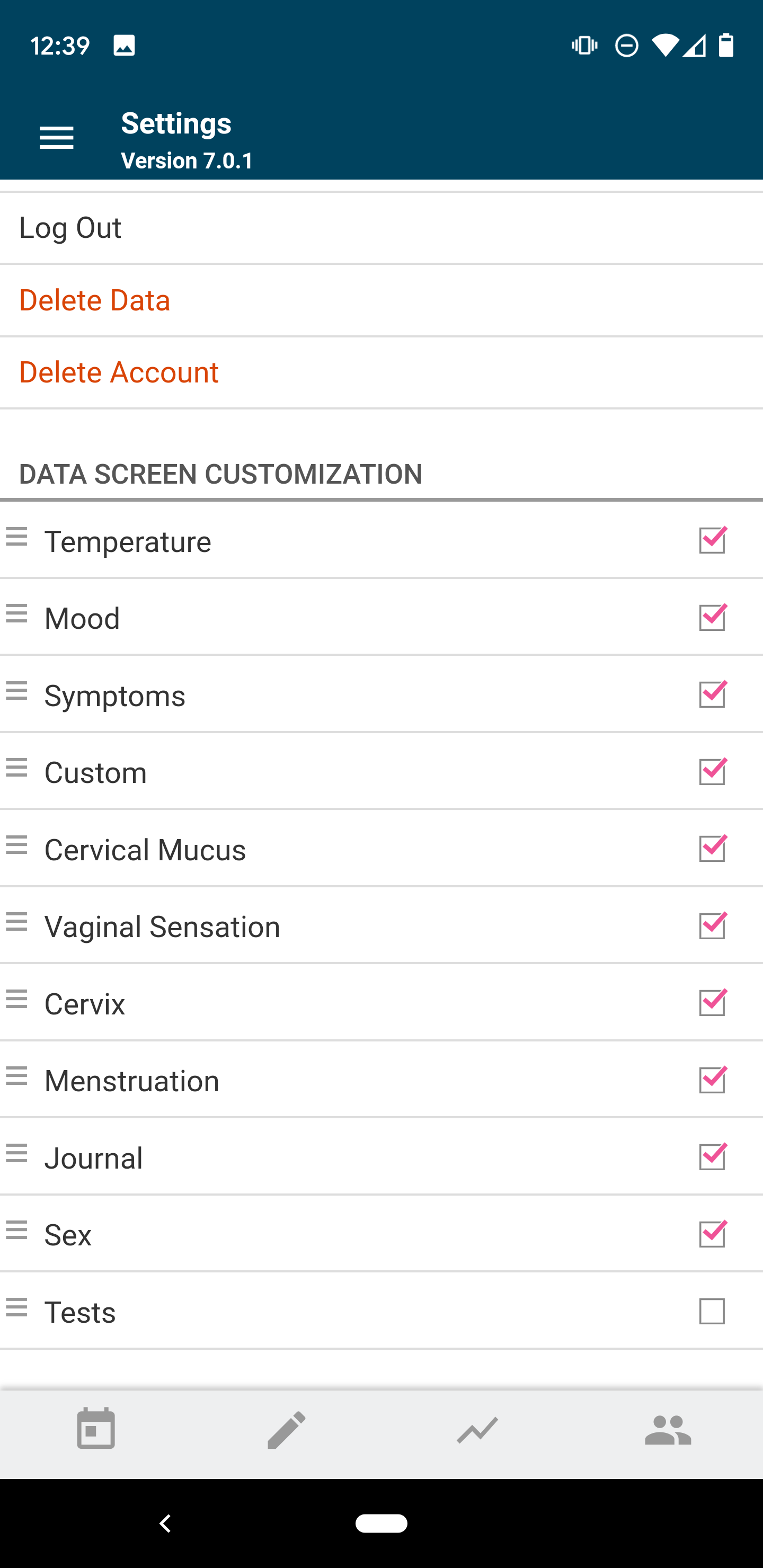
- Scroll down to view Data Screen Customization
- Tap the box next to Mood
- Tap Data entry page (pencil icon at the bottom) to see Moods available to select each day
- Note you can rearrange these items in the way you'd like to view them in the Data Entry page (pencil icon) as well. By dragging the three lines next to the item up or down.
Once the Moods feature is enabled on your Data Entry page:
- Tap the Data Entry page (pencil icon)
- Scroll down until you see the Mood section
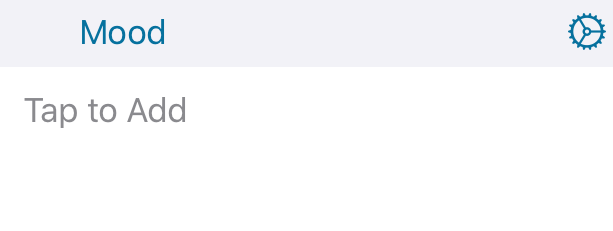
- Tap "Tap to Add" to add a single or multiple Moods
- Tap the Gear icon in the upper right to remove any added Mood
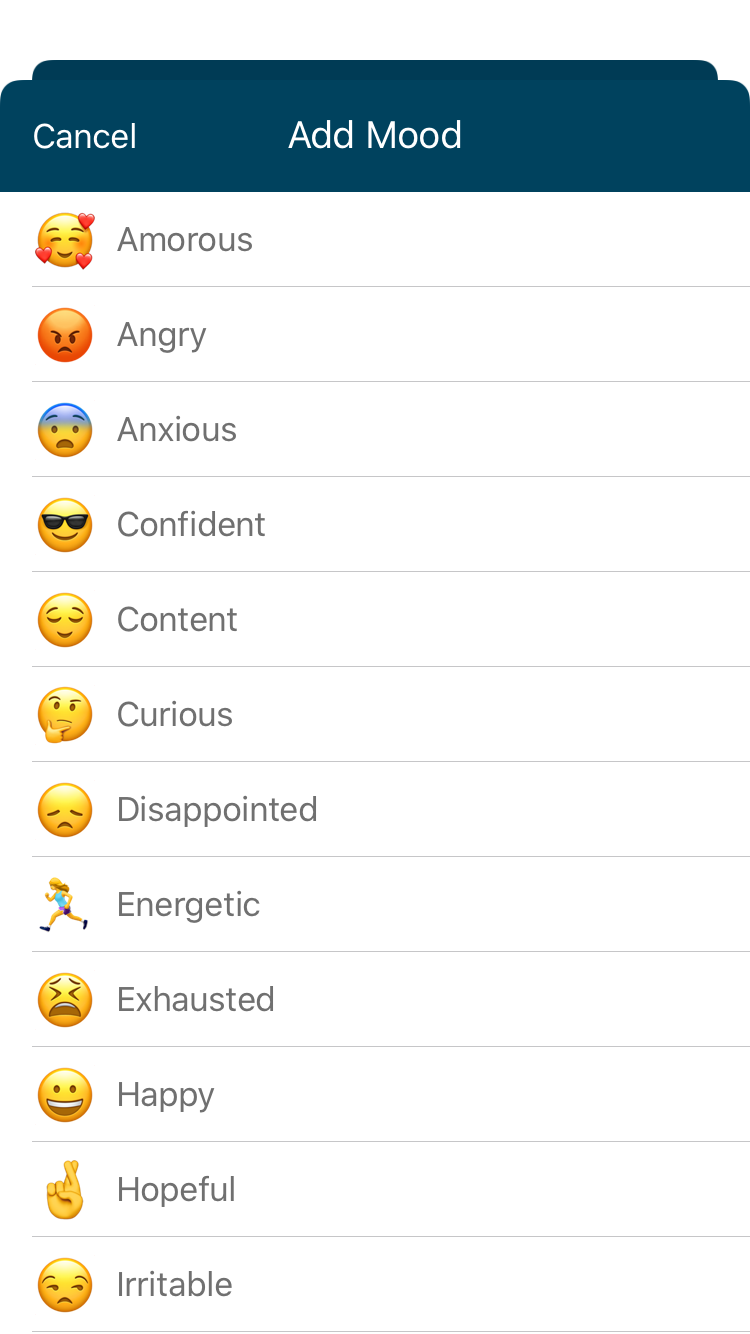
- Once you "Tap to Add," these preset Mood emojis will populate on the screen; tap any or all that feels closest to your Mood
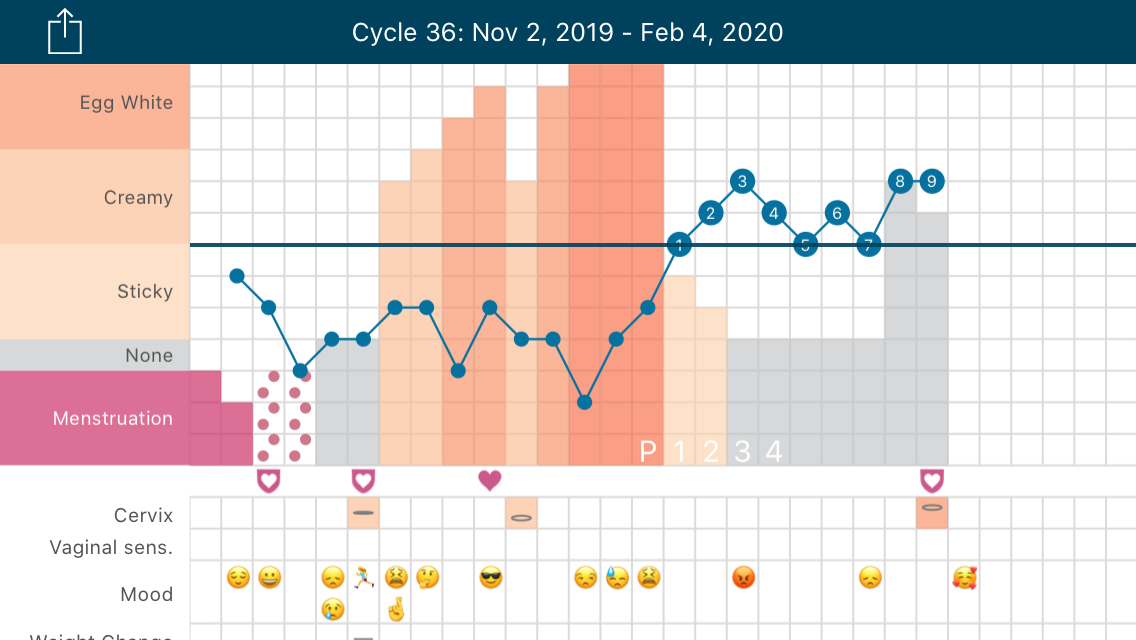
- After selecting the Moods with the above steps, you can see the progression of Moods throughout your cycle in Chart view
Read this article if you'd like to know more about tracking Moods throughout your cycle!