
Now that you've purchased Premium, the Kindara App requires a few tweaks to the Data Entry Layout to see all the new Premium Features!
First, let's get all the Premium Features to display on your Data Entry page (pencil icon)! These Premium Features will be listed as Vaginal Sensation, Moods, and Custom Data in the Data Entry Layout section of the Kindara App.
iOS Apple:
- In the Kindara App, tap More
- Tap Settings
- Tap Data Entry Layout
- Tap Edit
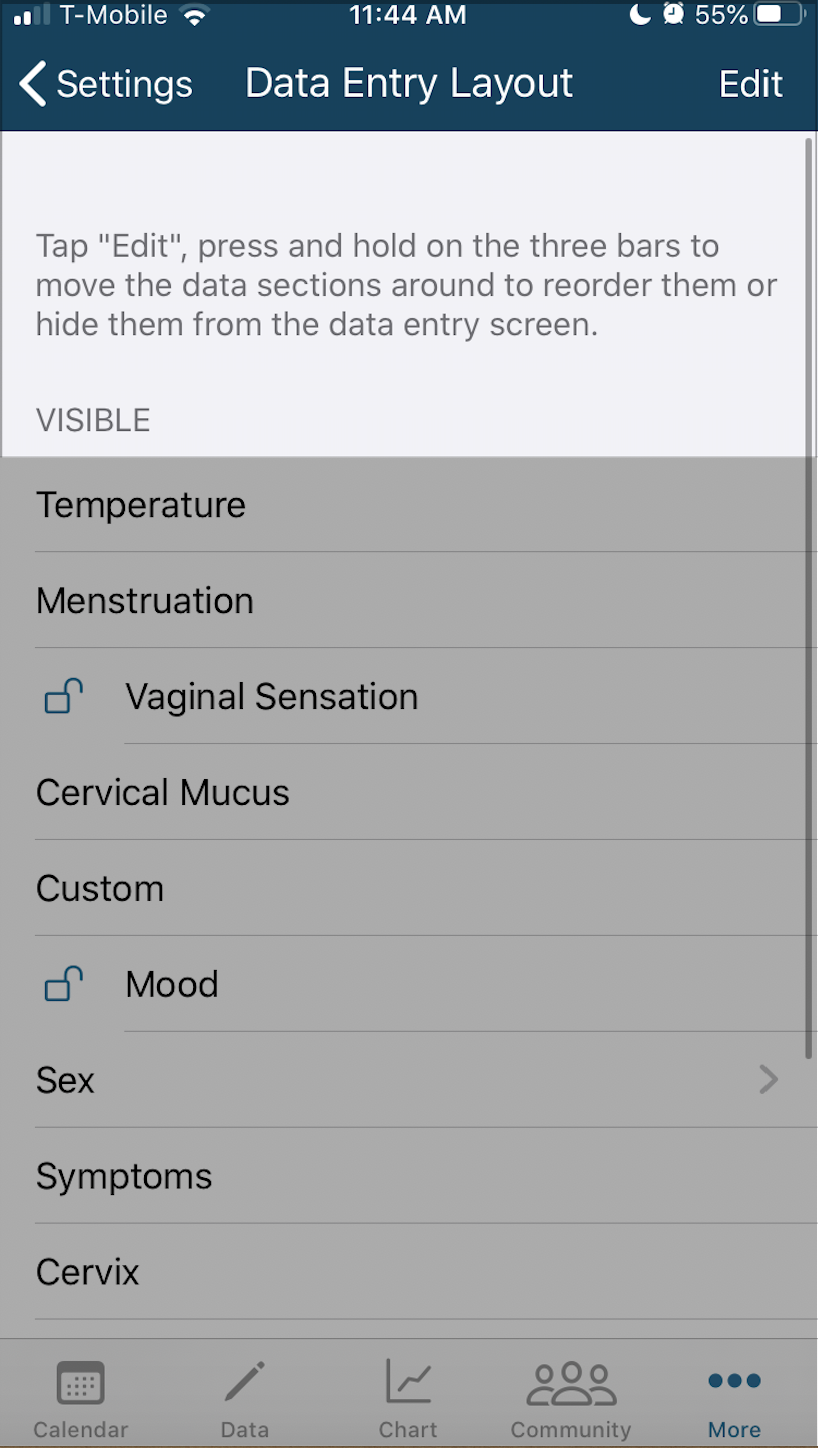
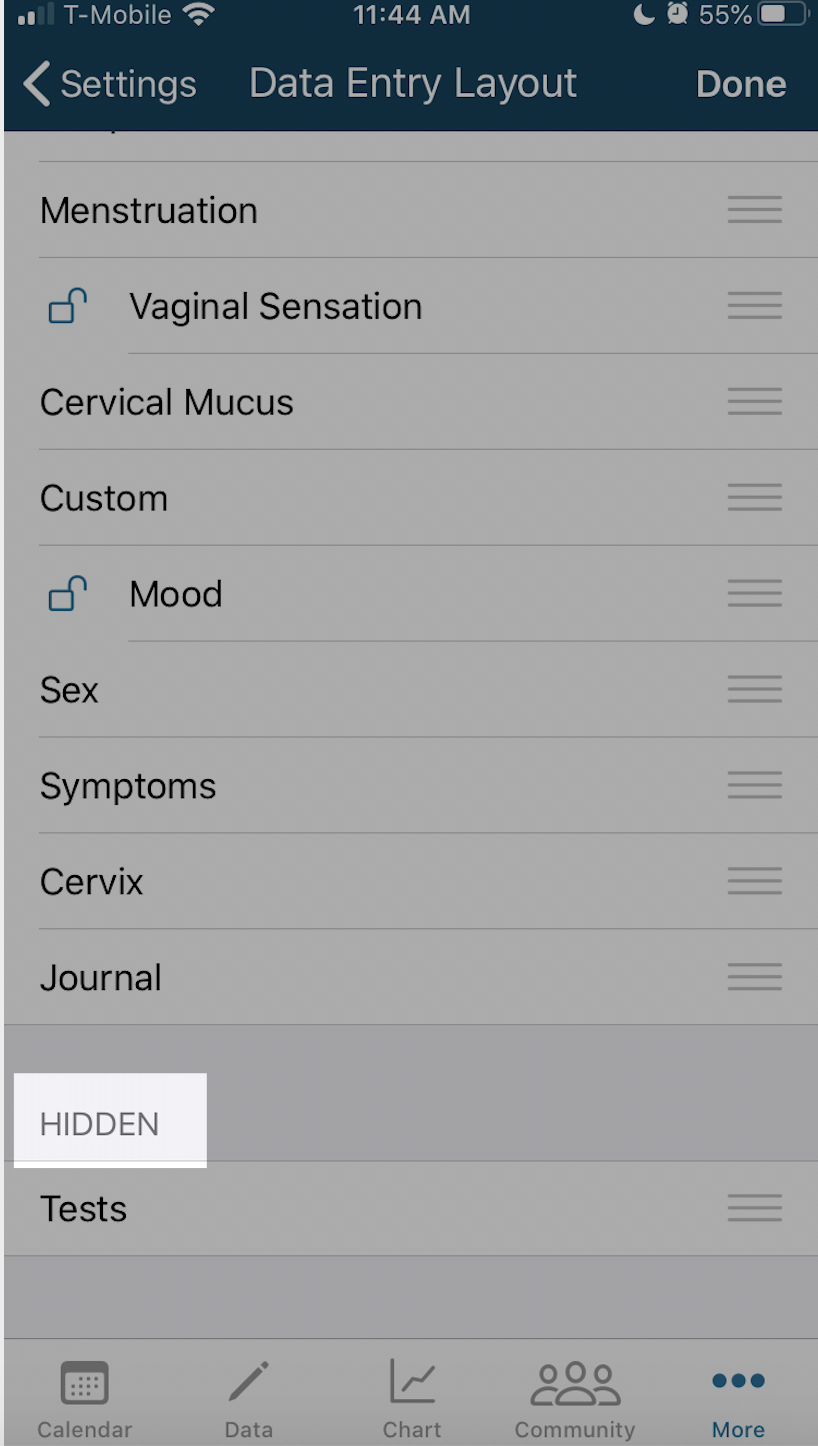
- Drag the three lines next to the item you'd like to display from "Hidden" to "Visible"
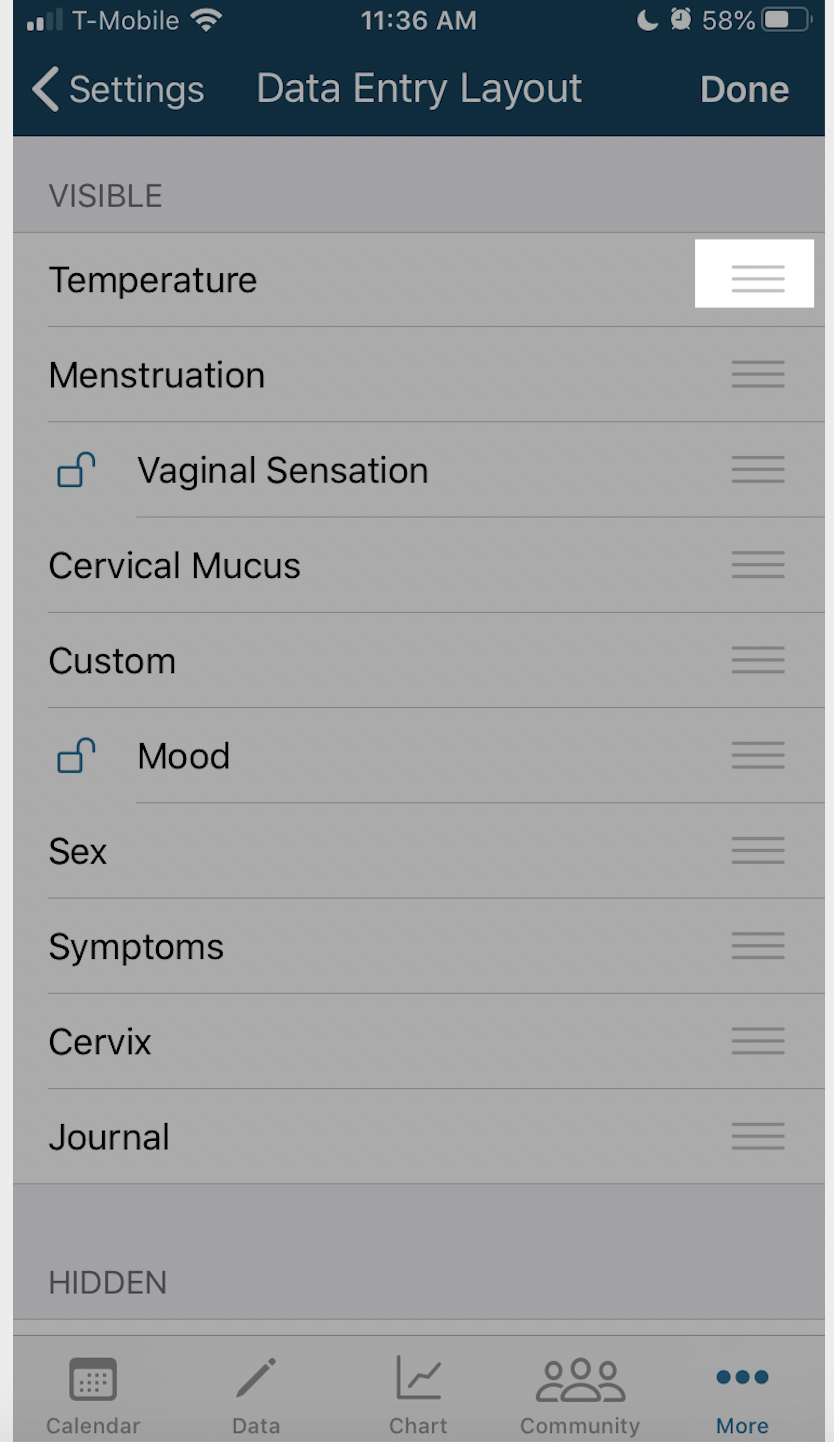
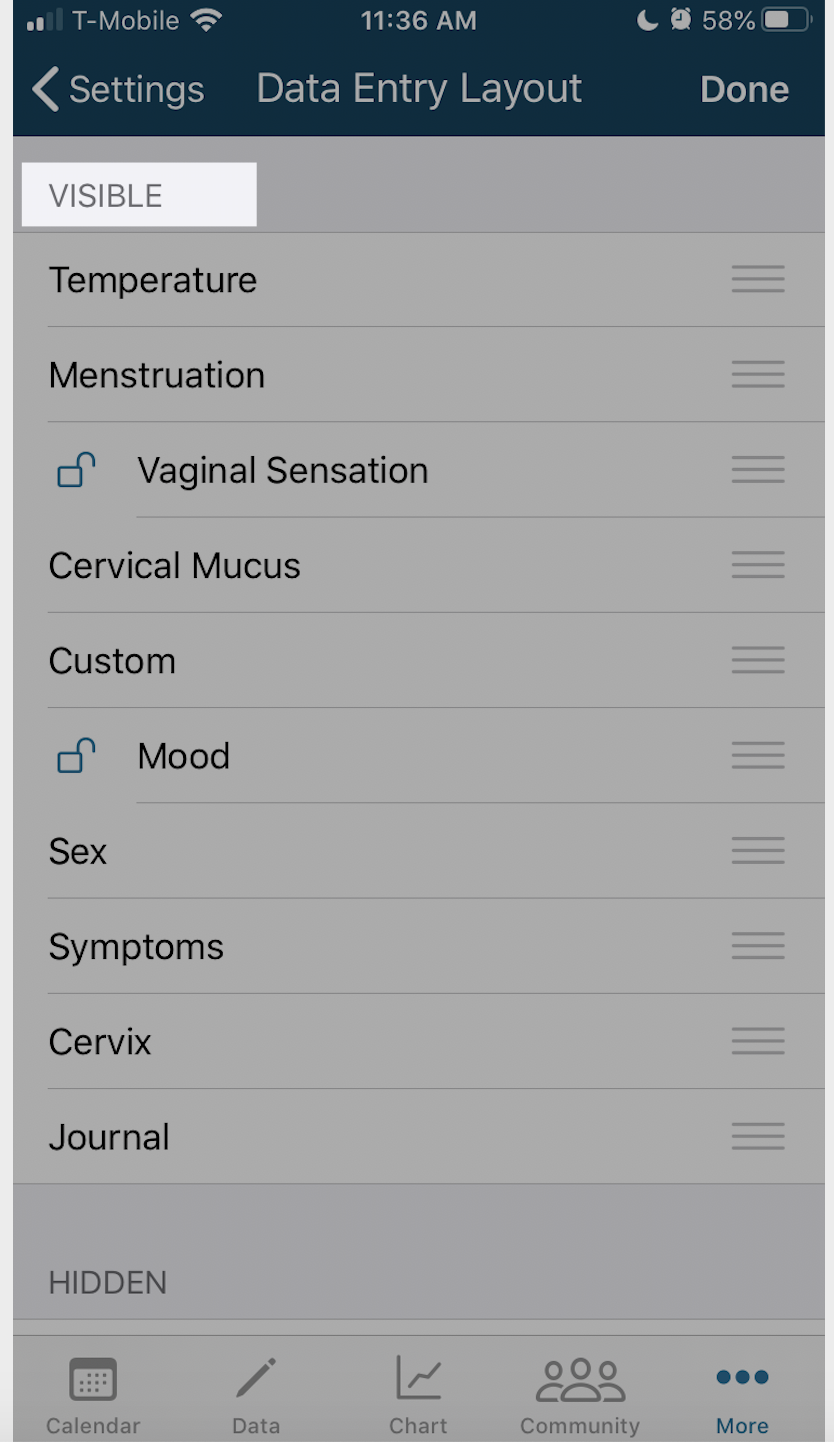
- Rearrange the items on this Data Entry Layout Page in any order you'd like and they will display this way on the Data Entry page (pencil icon) once completed.
- Tap Done
- Tap Data entry page (pencil icon at the bottom) to see the selected items listed available for daily use.
_________________________________________________________________________________________________
Android:
- In the Kindara App, tap Menu (three vertical lines in the upper left corner)
- Tap Settings
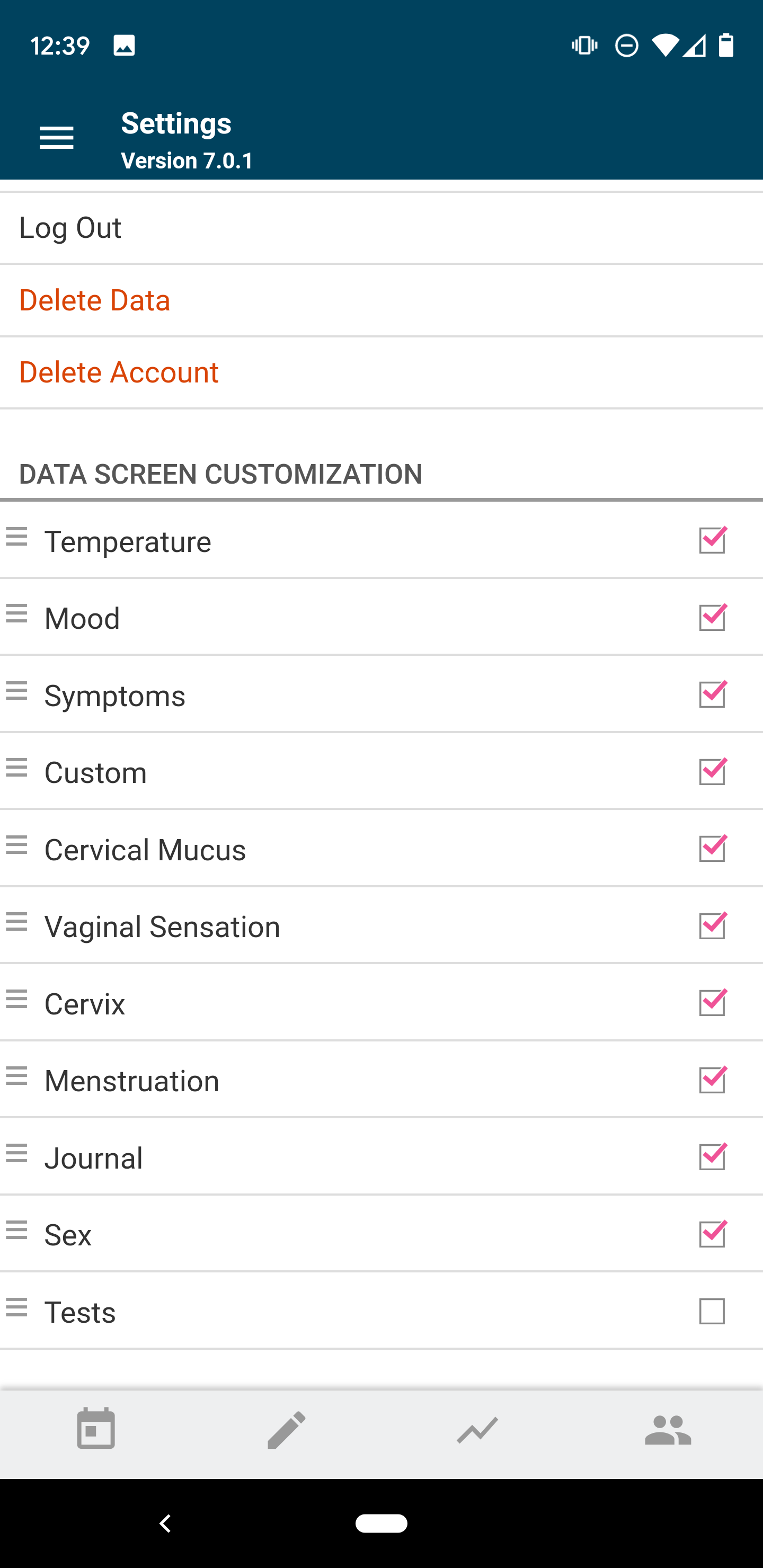
- Scroll down to view Data Screen Customization
- Tap the box next to each item you'd like to display
- Rearrange the items here by holding the three veritcal lines and dragging them up or down and they will display this way on the Data Entry page (pencil icon) once completed.
- Tap Data entry page (pencil icon at the bottom) to see these items available for daily use
To learn more about how to use each Premium Feature to its fullest please visit us here: Vaginal Sensation, Moods, Apple's Unlimited Custom Data, Android's Unlimited Custom Data, Lunar Phase, Android Private Group Chat and Direct Messaging, and Apple Private Group Chat and Direct Messaging in the Kindara Community!