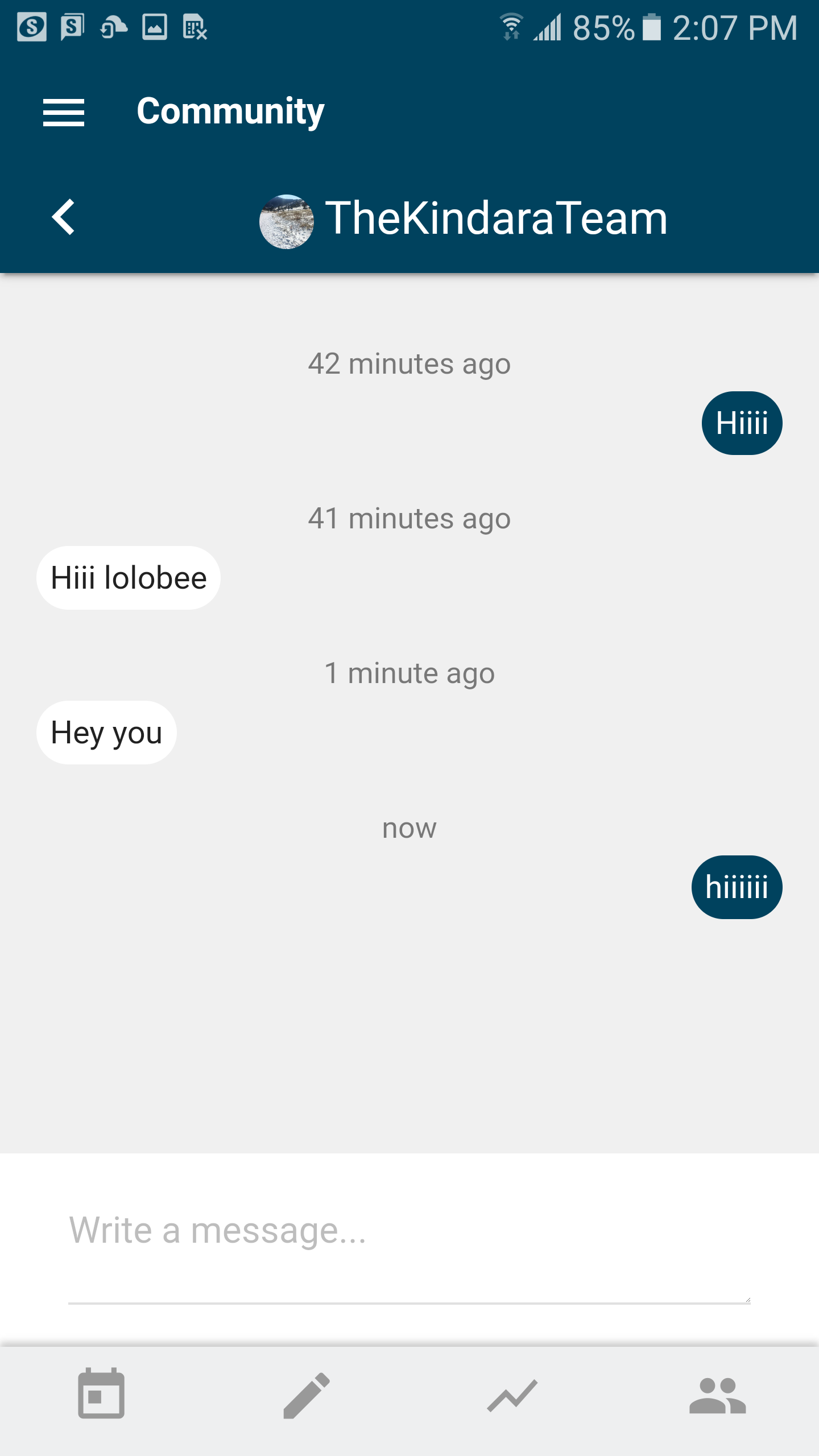
With Kindara Premium, communicating directly with other Kindara users empowers you to create a network of support for your personal fertility journey! Exchange Direct Messages with other Kindara users in the Community and create Private Groups by the following steps below
Direct Messaging and Private Groups for Android Users:
First, start by creating a Profile in the Kindara Community! Read our Terms of Use regarding the Kindara Community page here: Kindara Terms of Use
Android Device:
- Tap Community (icon resembling two people)
- Tap Profile at top of the page
- Tap Edit (pencil icon)
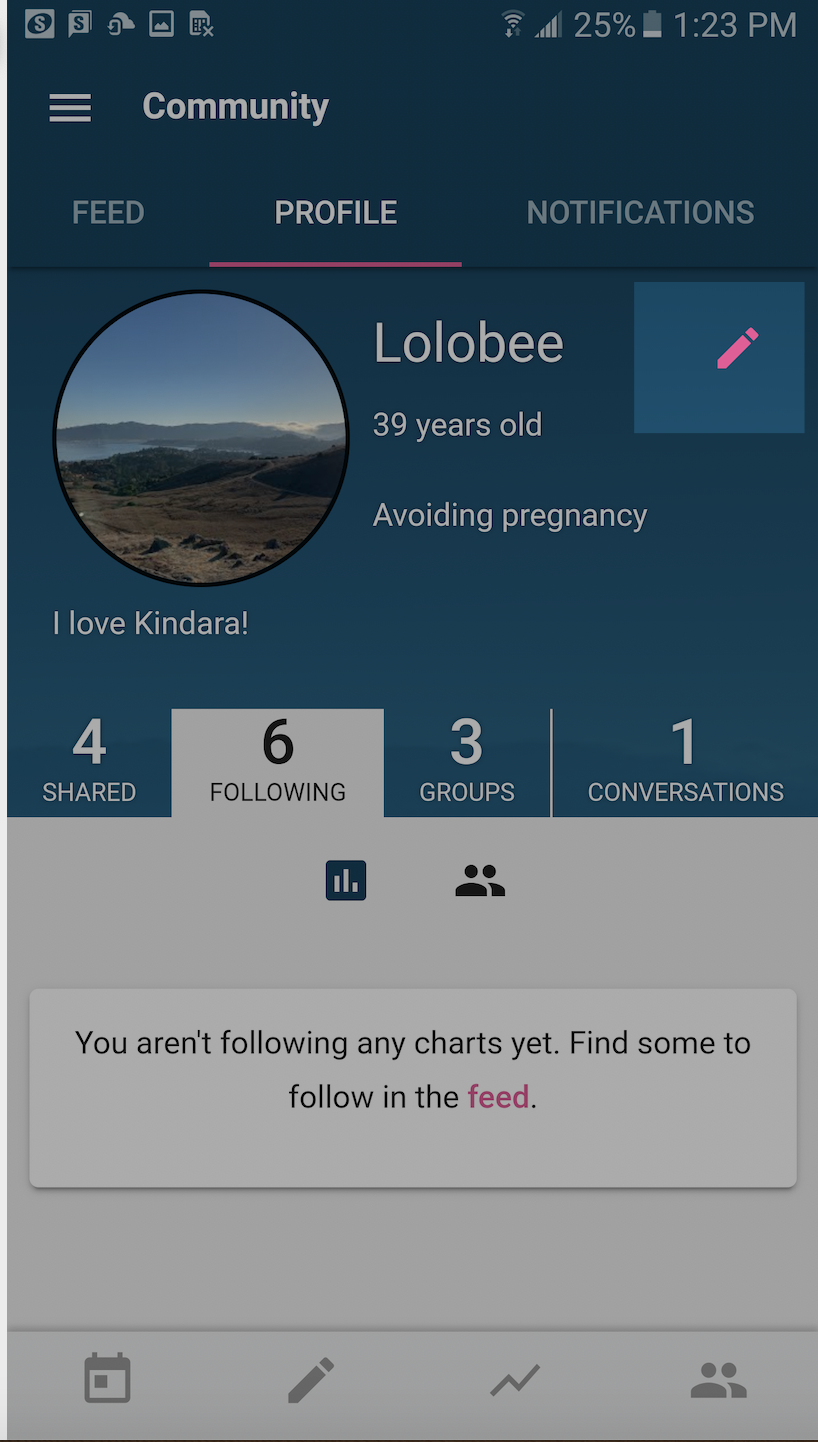
- Enter a Username
- Enter About Me (optional)
- Choose an Image (optional)
- Tap Save
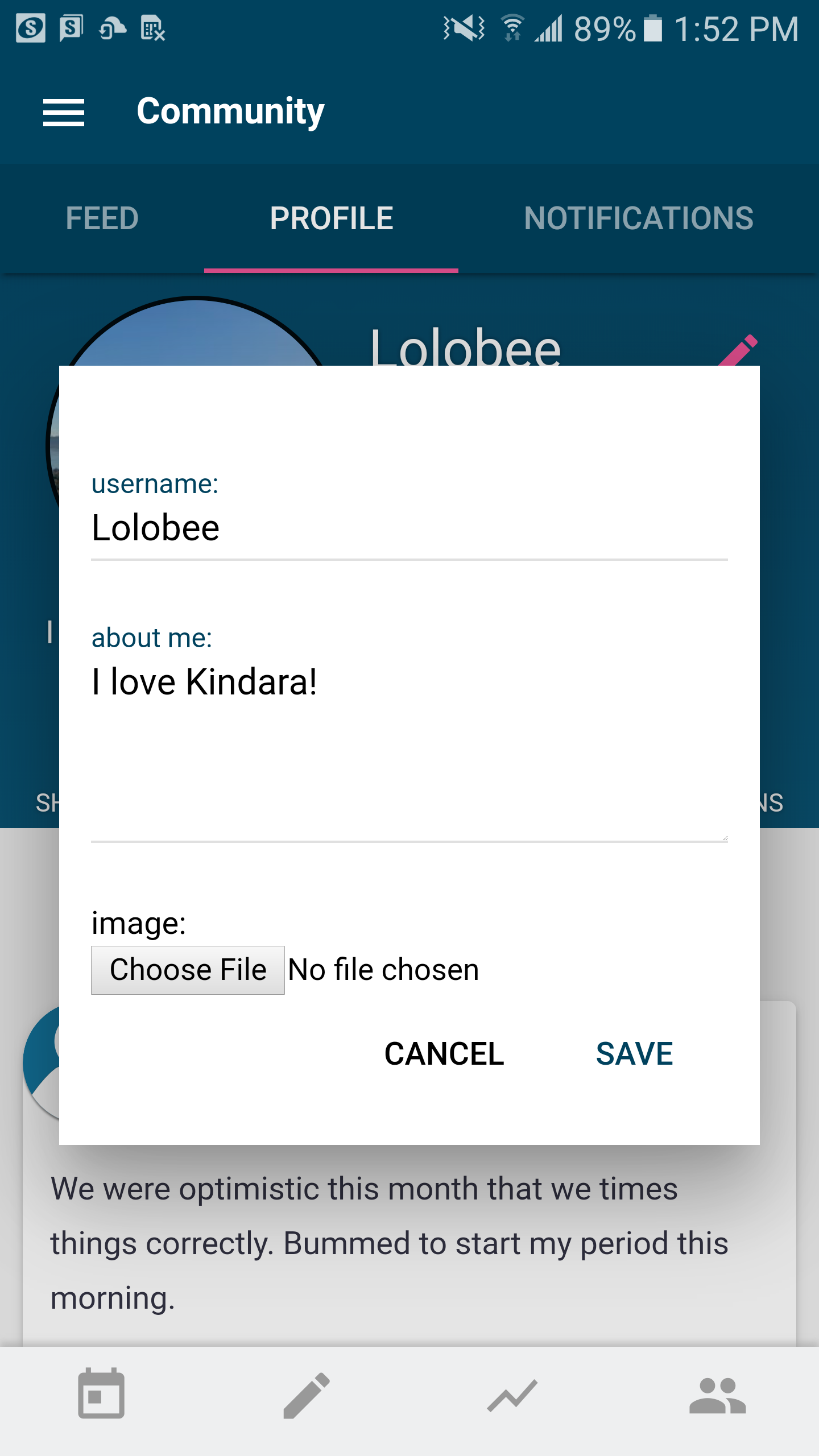
Create a Private Group:
- Tap Community (icon resembling two people)
- Tap Profile
- Tap Groups
- Tap the + Sign under My Groups
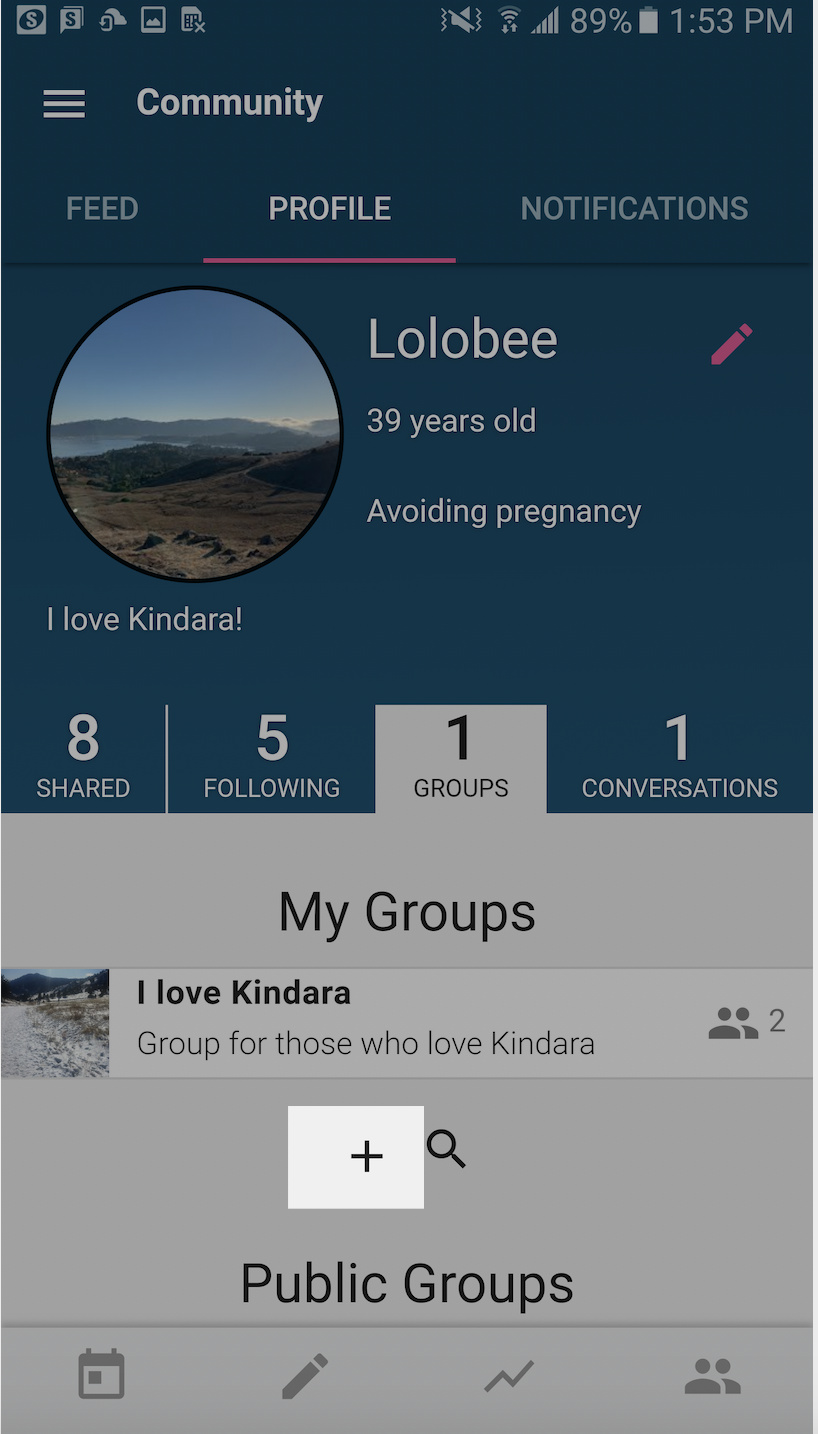
- Enter Name of the new Private Group
- Enter Description (optional)
- Choose an Image (optional)
- Tap Create
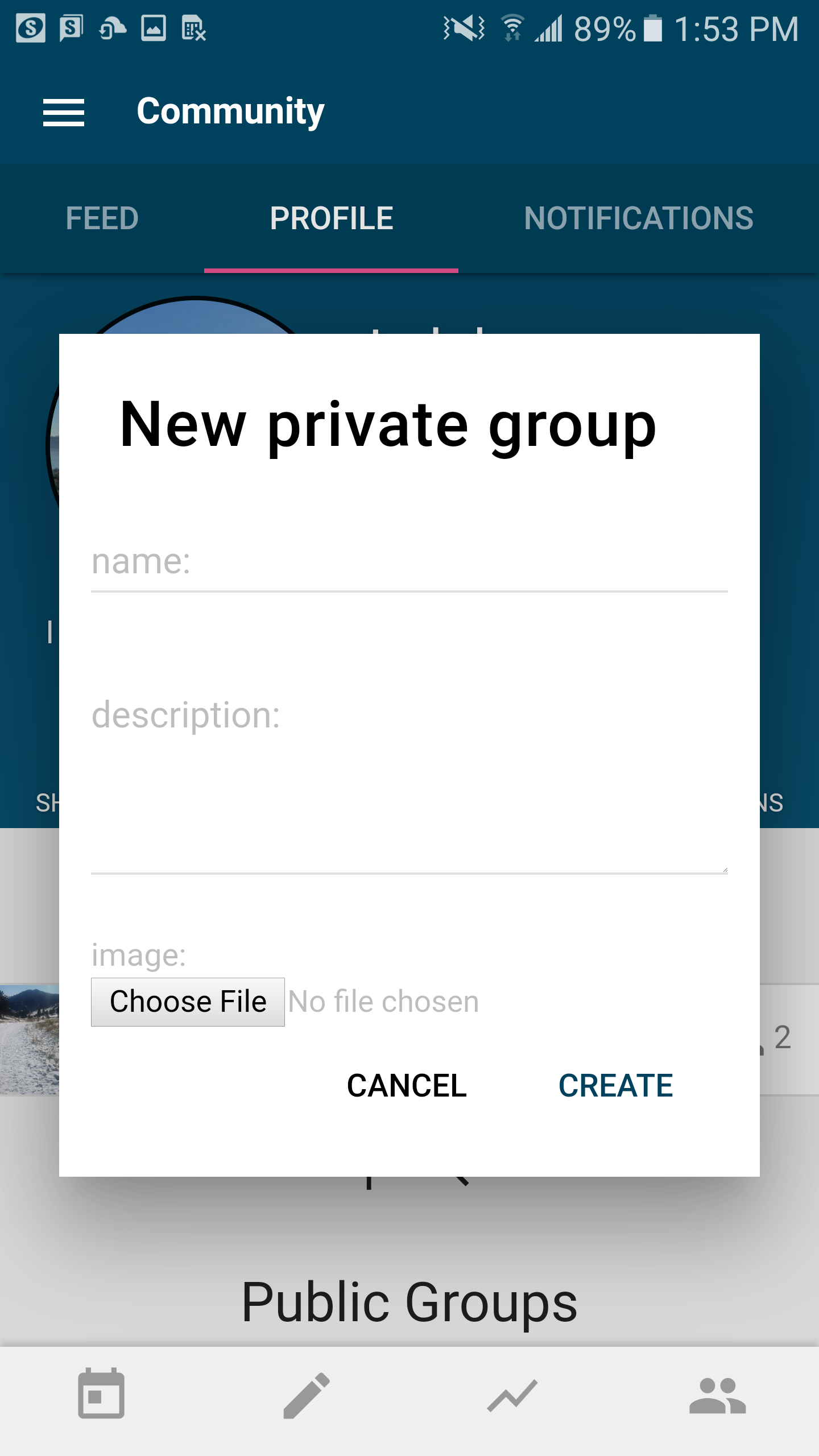
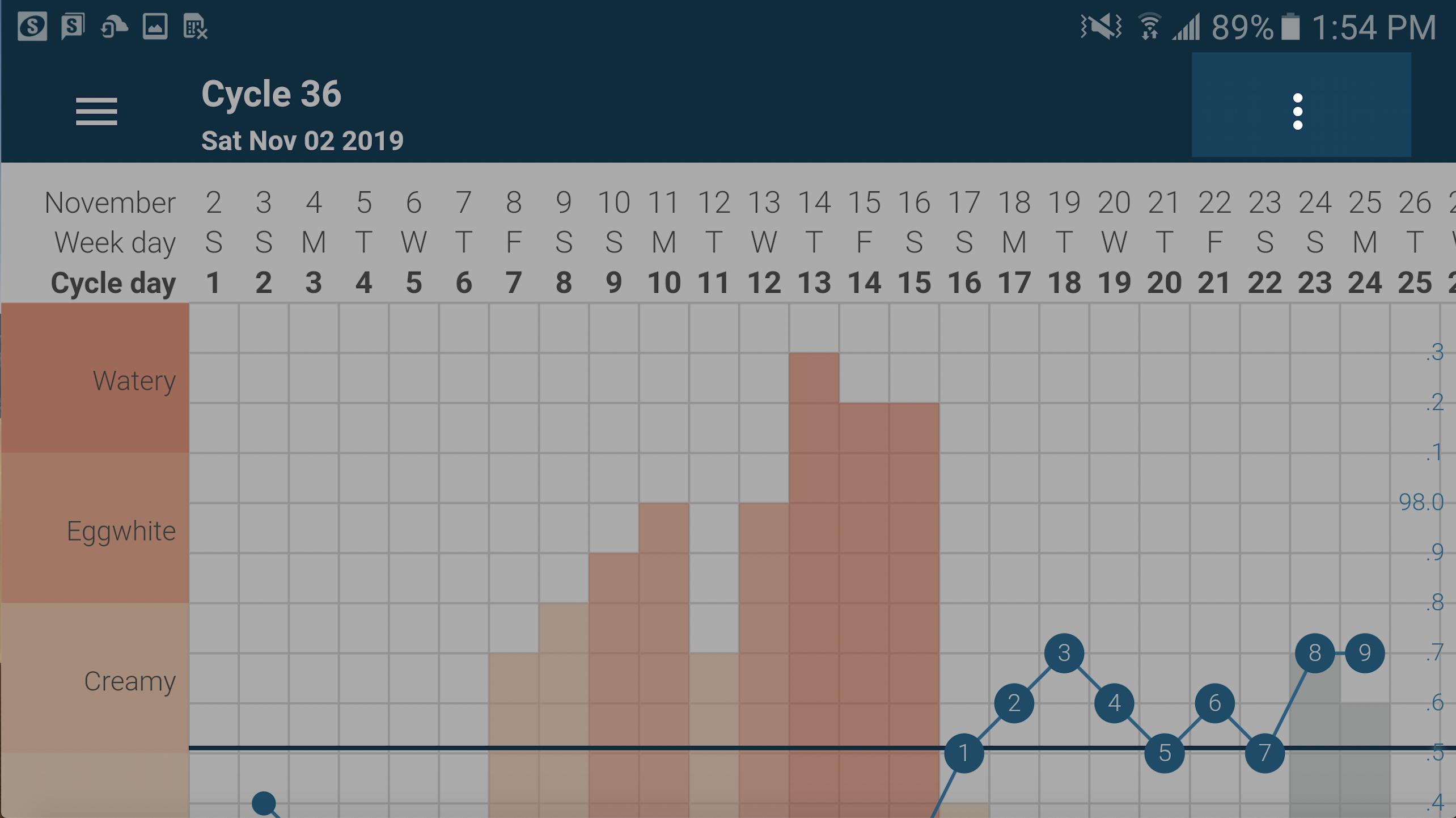
Share a Chart with the Private Group you've created
- Tap Chart view
- Tap Share (vertical 3 dots at top right)
- Under Share, this chart, tap "With Community"
- Enter a description or comments and questions about your Chart
- Tag your chart with relevant tags
- Tap Share with Groups (find the custom group you've created)
Invite others to join your new Private Group:
- Tap Community (icon resembling two people)
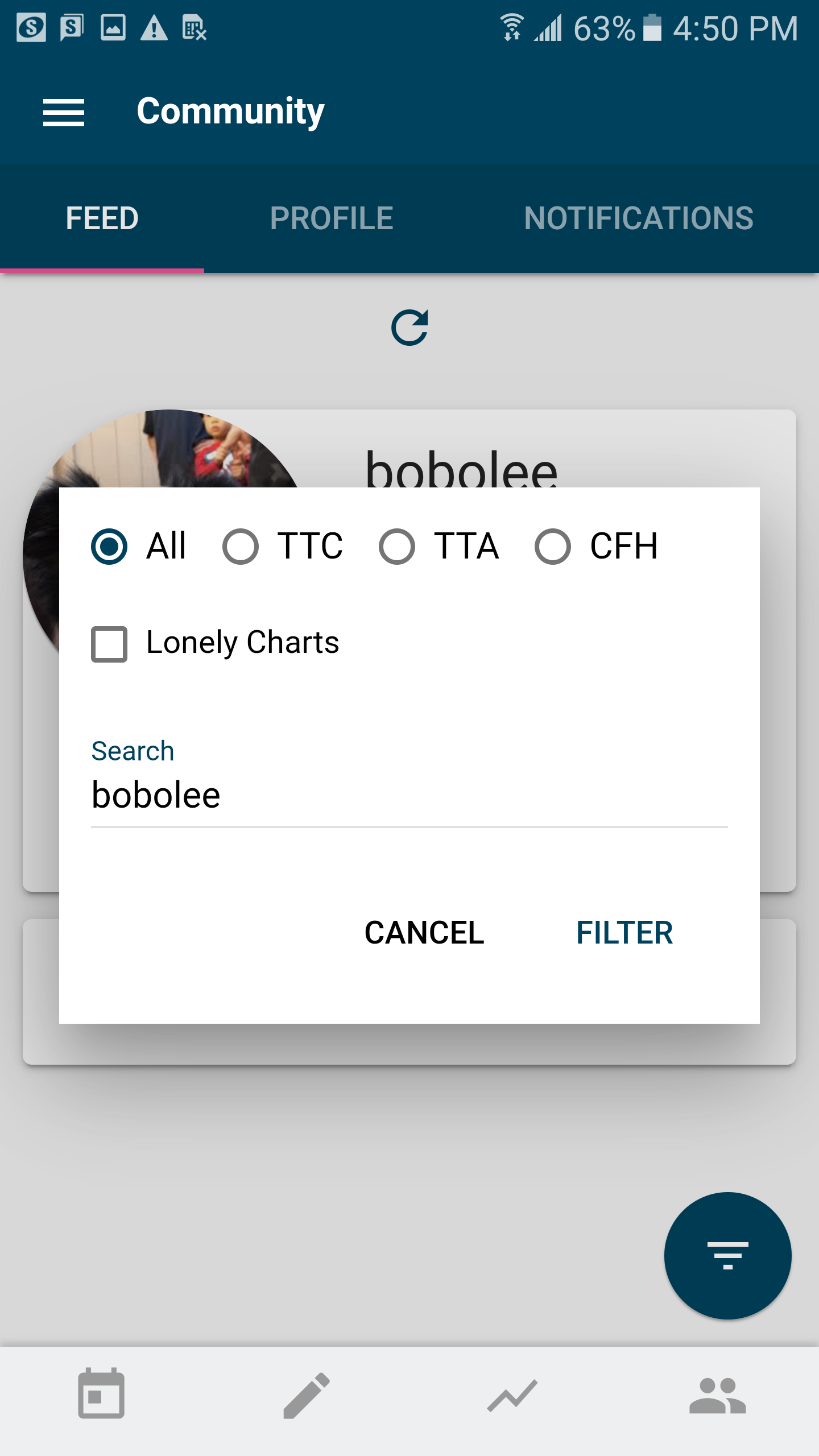
- Tap Filter icon (at the bottom right of screen)
- Tap All
- Search for the user you'd like to invite to your new Private Group by their username
- Tap Filter
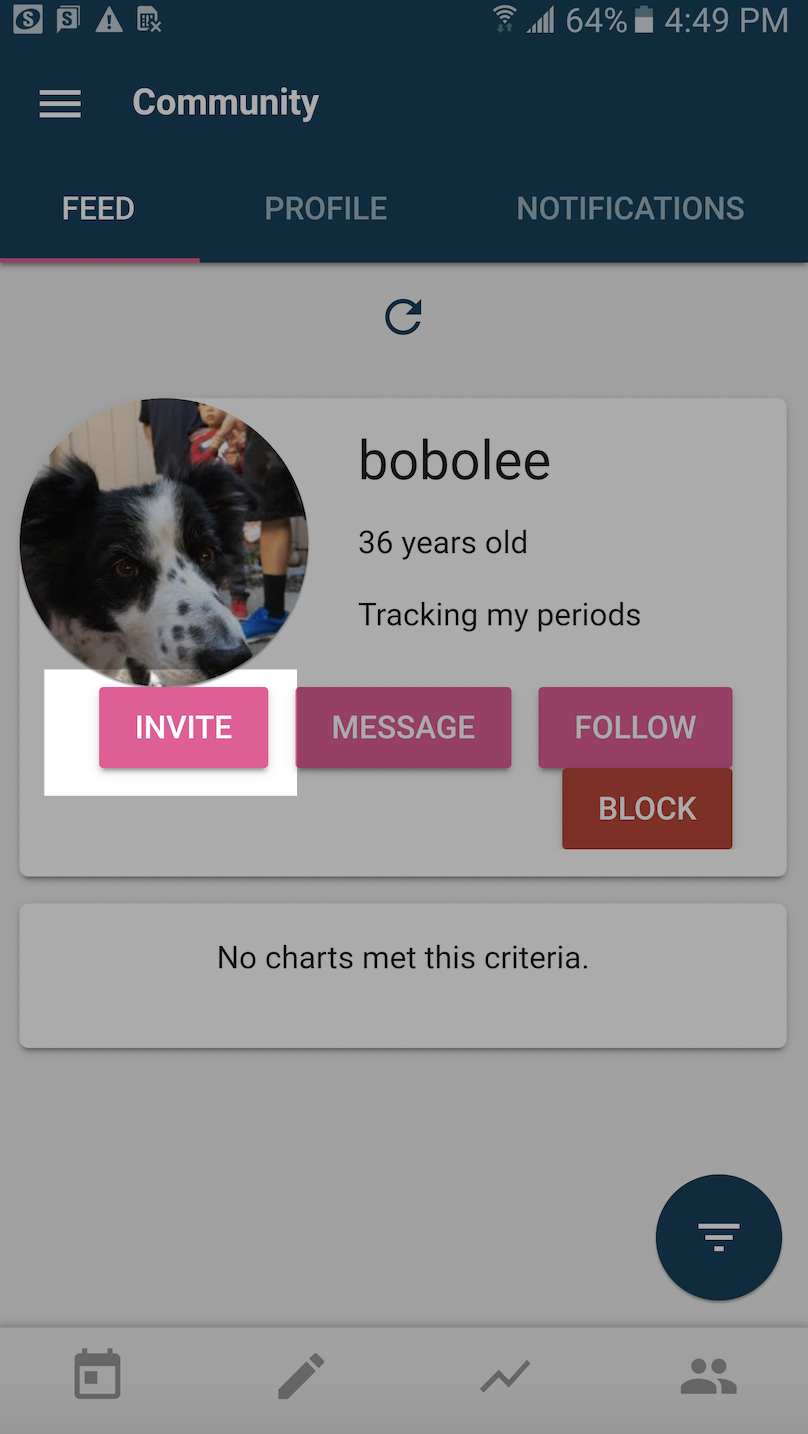
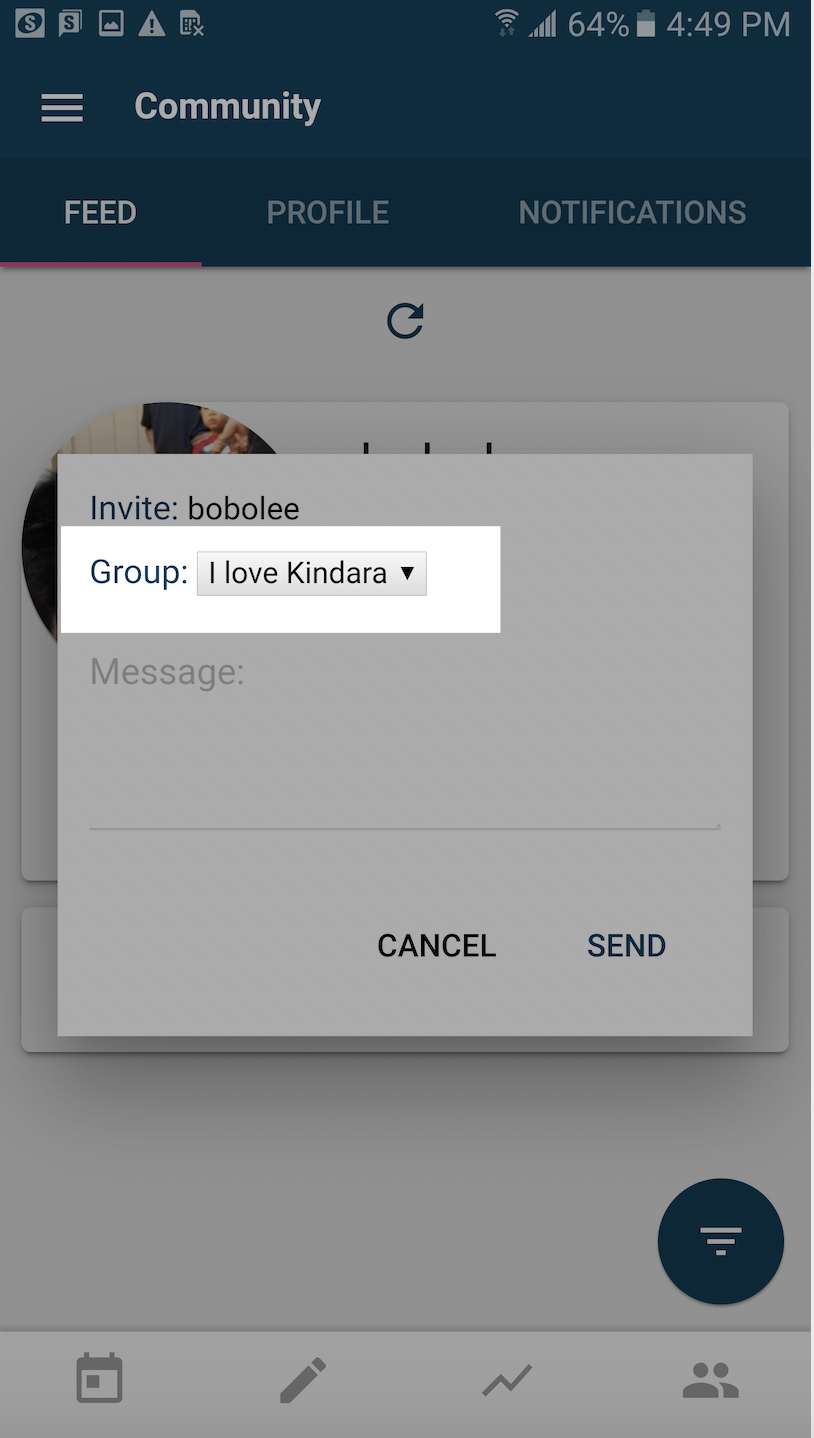
- Under the name of the user, you'd like to invite, tap Invite
- Select the new Private Group you've just created
- Enter a message to the user you are inviting to your Private Group
- Tap Send
- The user you've invited will find the invitation to your new Private Group in their Notifications section in the Kindara Community
Send a Direct Message to another Kindara Community User:
- Tap Community (icon resembling two people)
- Tap Profile
- Tap Conversations
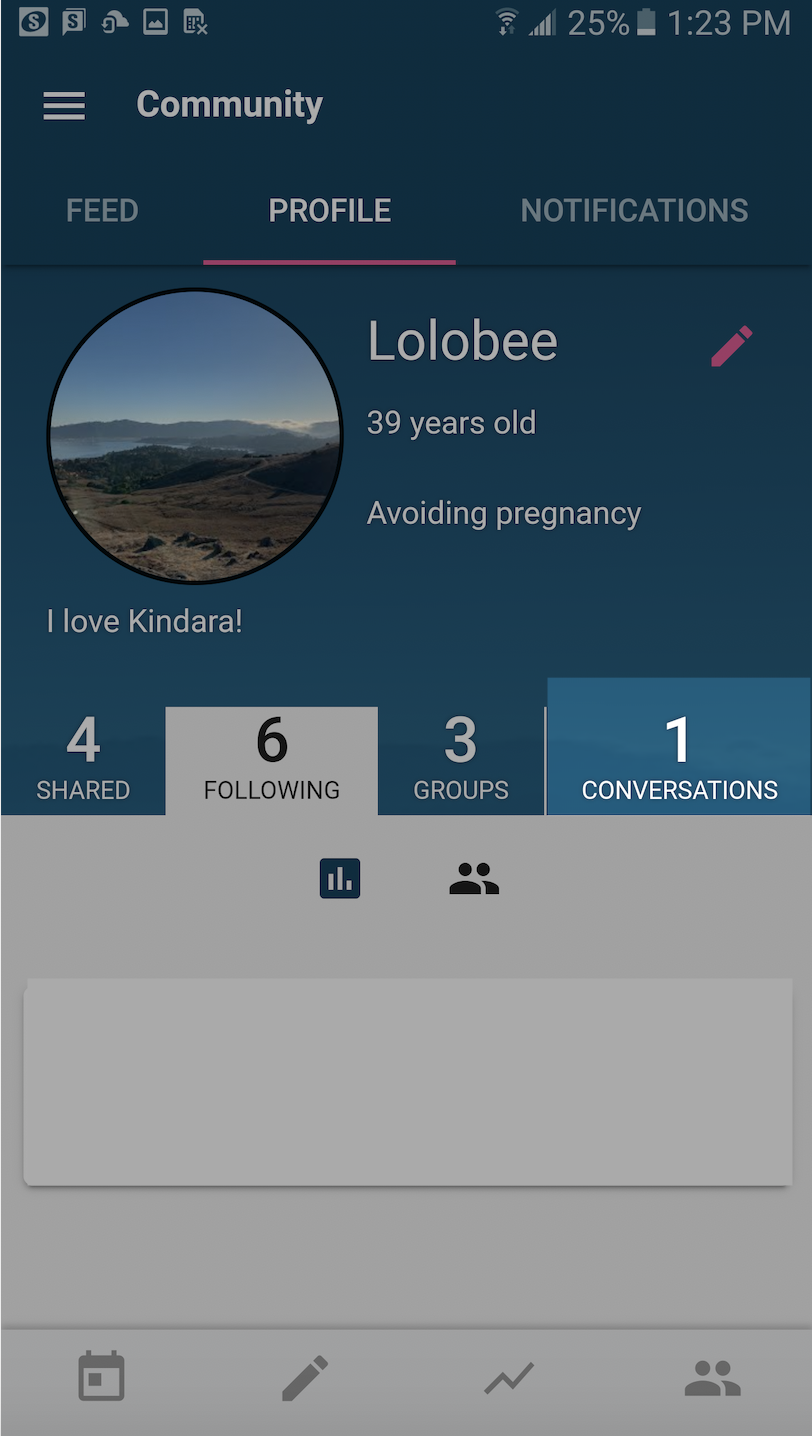
- Tap + icon
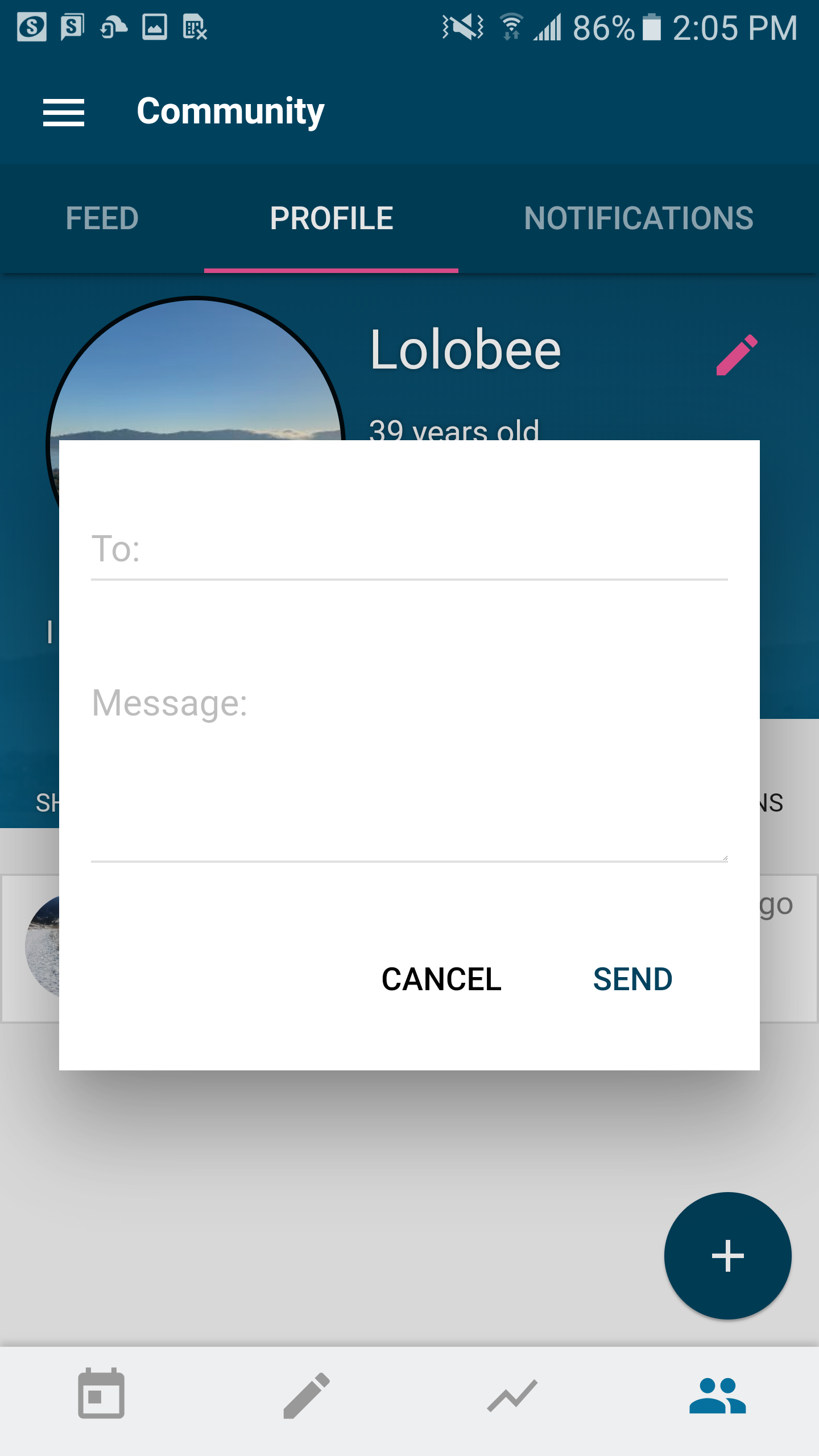
- Enter the username of the person to whom you'd like to send a Direct Message
- Type your message
- Tap Send
- The user you've invited will find the request to receive a Direct Message in their Notifications in their Kindara Community page (you can also find any invites you've received from other users here as well)
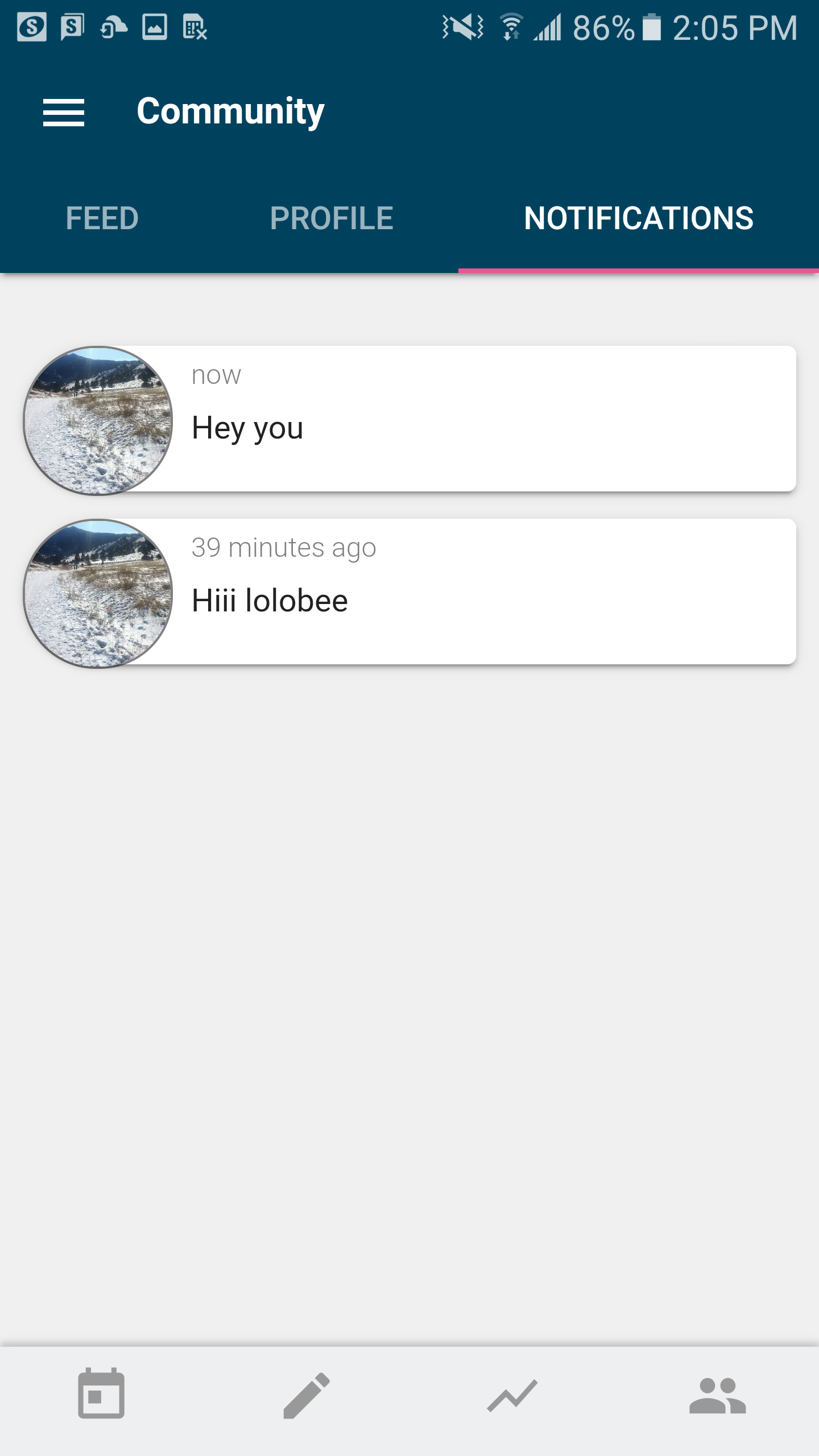
Once the Kindara User accepts your invite, you'll find all the Private Direct Messaging listed under Conversations!
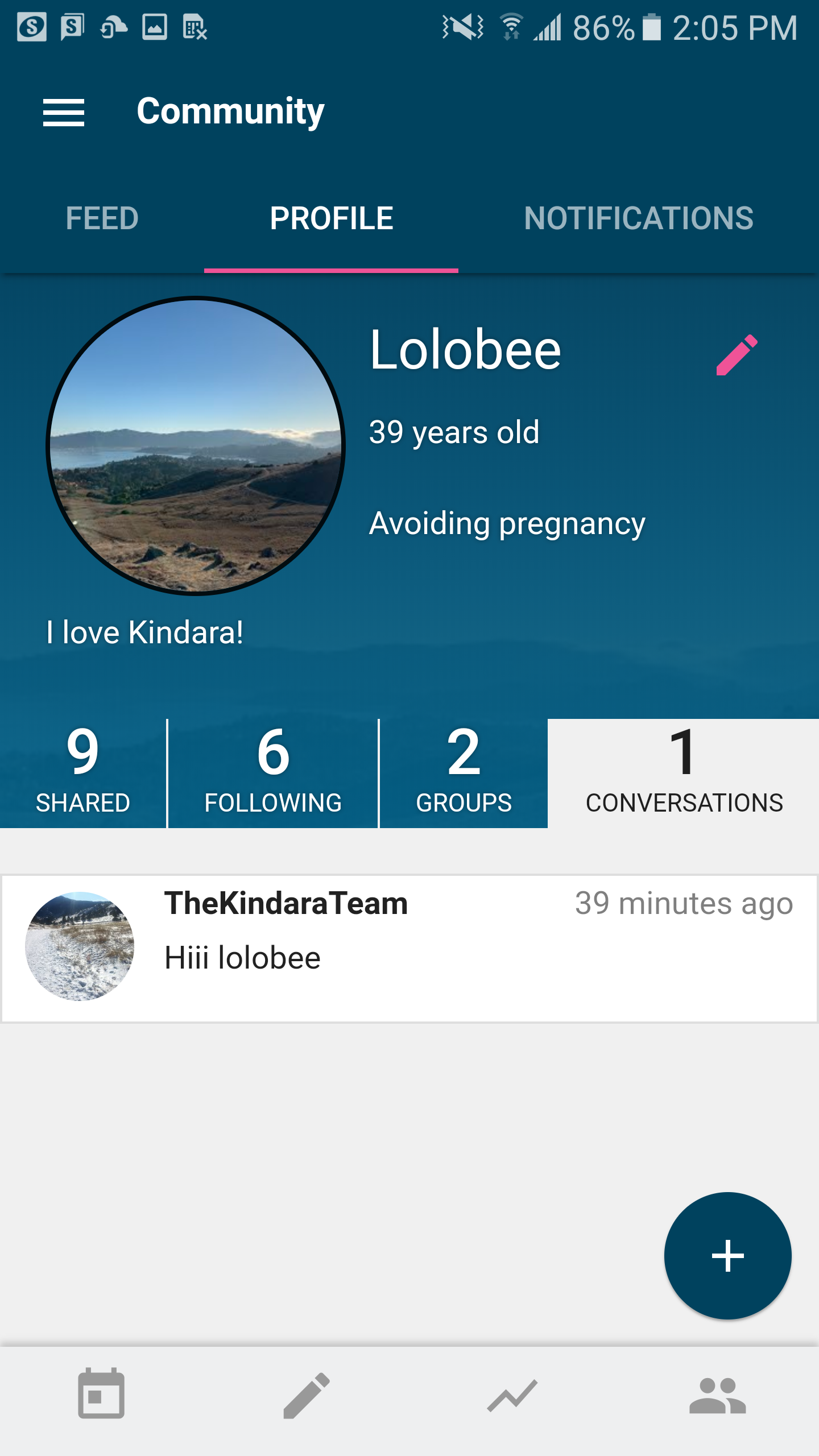
Below is an example of the Direct Message page between you and other Kindara Users